Ironvale documentation
A WordPress theme for construction companies and builders, with the look of a building site: general contractors, home builders, renovation firms, roofers, commercial builders and handyman services. Six demos, a quote bar with a live guide price, a job list for small works, a rate list for services, a job board of projects, a build programme, quote requests saved in your dashboard and a project cost estimator.
Thank you for choosing Ironvale. This guide takes you from a fresh WordPress site to a copy of the demo with your own details. If something is not covered here, write to support@codememory.com — we answer within one working day.
- Version2.0.0
- WordPress6.5 or later
- PHP7.4 or later
- Live demoOpen the demo
Highlights
- Six construction demos imported in one click, each with its own first screen
- Building-site design: stencilled section numbers, hazard tape edges, steel fact plates, bolted photo boards and heavy condensed capitals
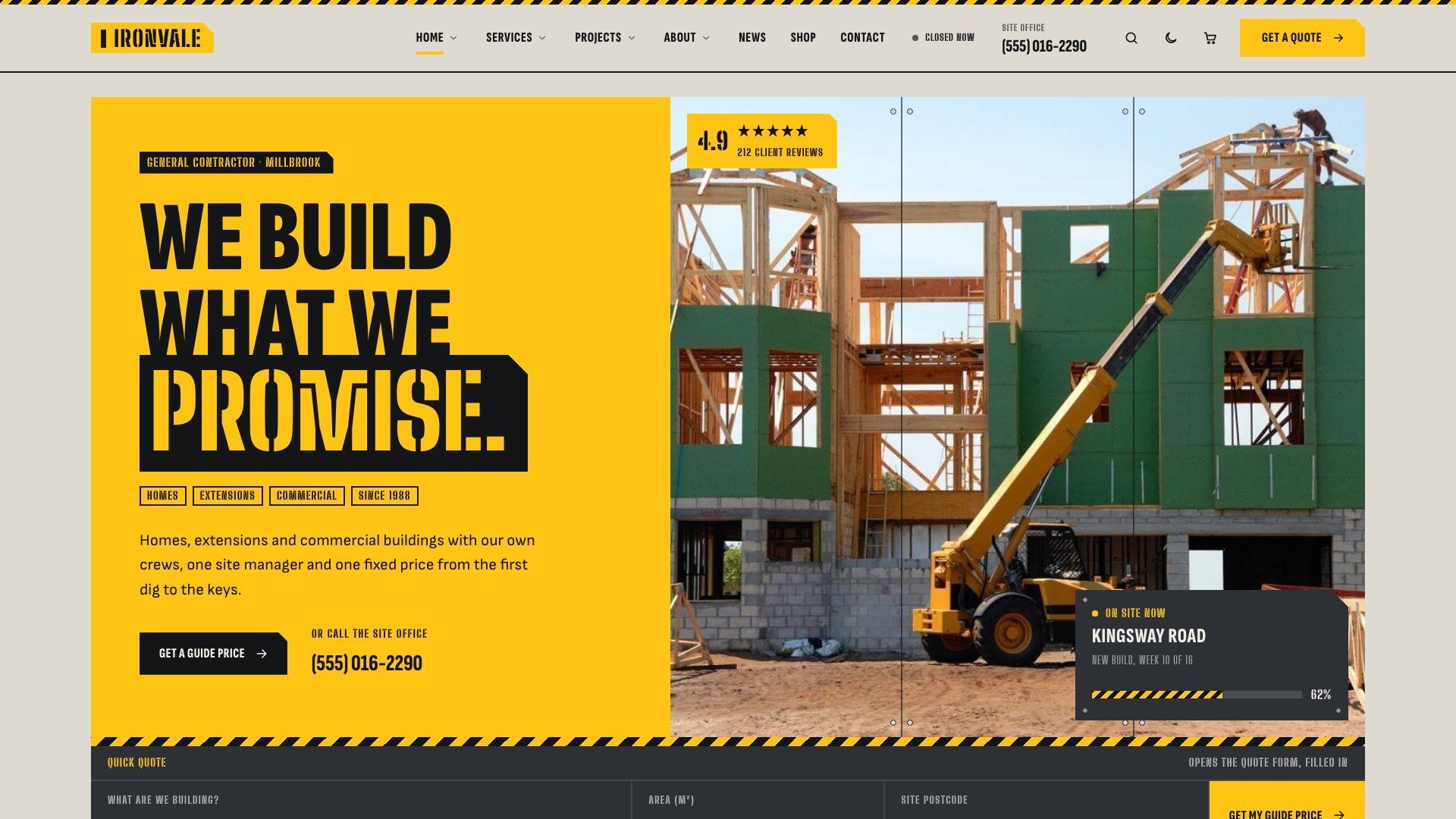
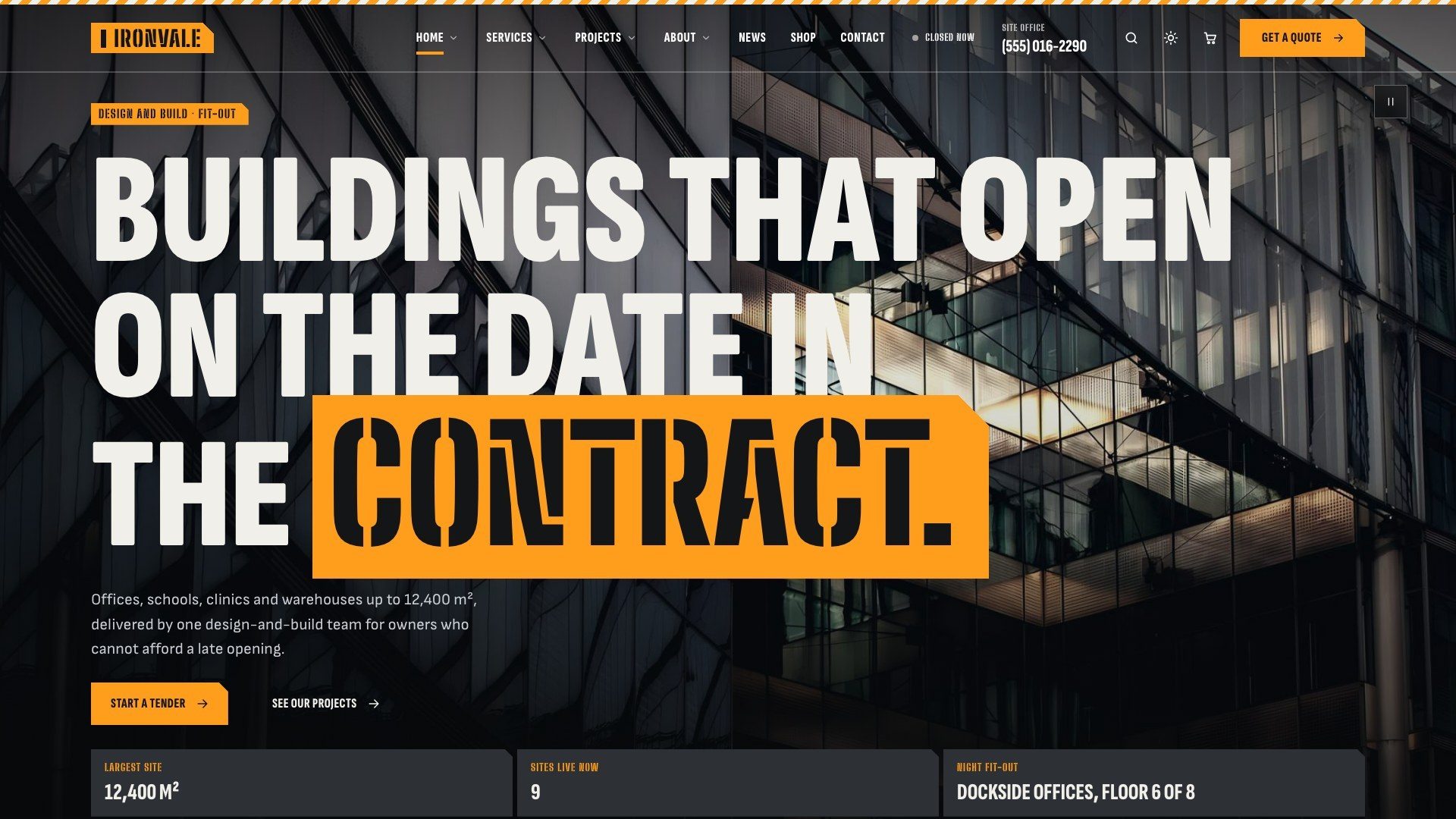
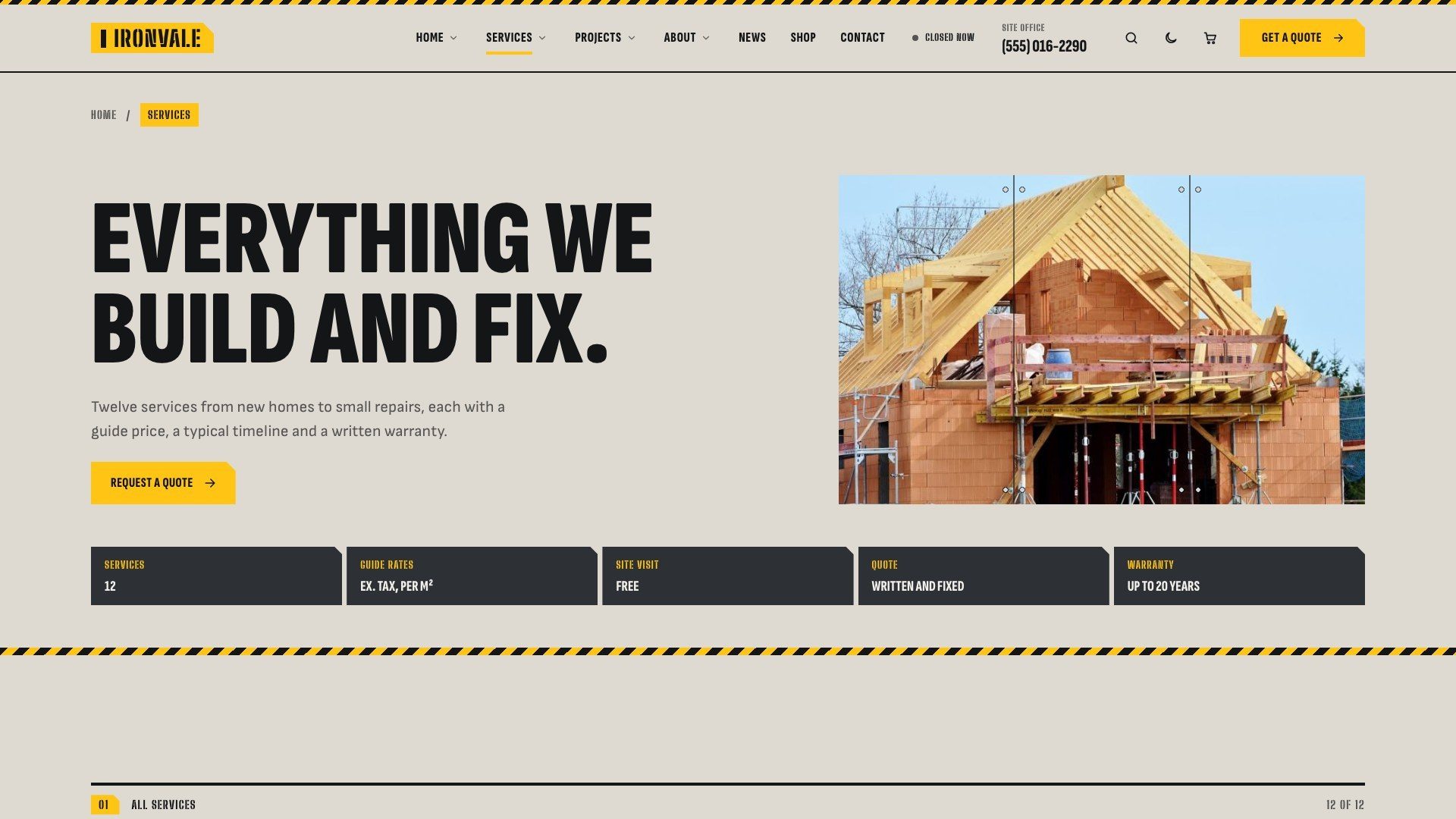
- Five hero layouts: site hoarding, full-screen photo or film, title beside a tall photo, giant title above a wide photo, and a title band for inner pages
- Quote bar under the hero: service, area and postcode, with a live guide price, sent to your quote page
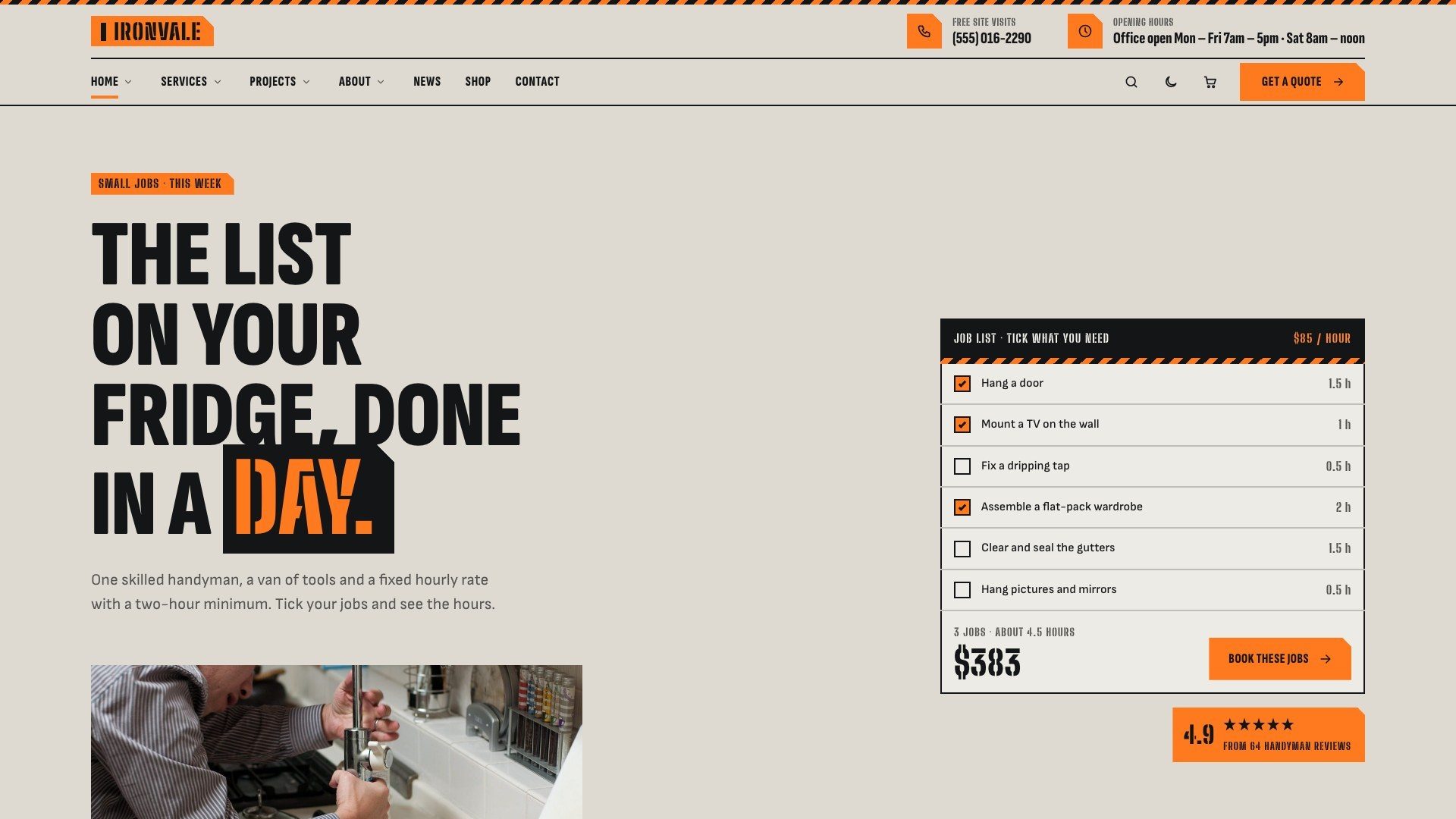
- Job list for small works: visitors tick jobs, see the hours and the price, and book them in one go
- Schedule card and fact plates on the hero
- Tape-wipe motion: photos are uncovered behind a strip of hazard tape, numbers count up, headings rise word by word, a pinned project rail (all off for reduced motion)
- Rate list for services: a price per m² or a fixed price, programme, crew, warranty and what is included
- Job board of projects, grid, mosaic or pinned rail, with sector filters, value, duration and a project timeline
- Build programme: each step a bar on a week scale
- Reviews pinned on a site board, with the average score
- Site information board for your numbers and a site diary for your posts
- Sector panels with a photo and the number of projects
- Quote request form with project area, start date, site, budget and a live guide price, saved in your dashboard with a status
- Project cost estimator with a large-project discount
- Team profiles with role, licences, years with you and specialty
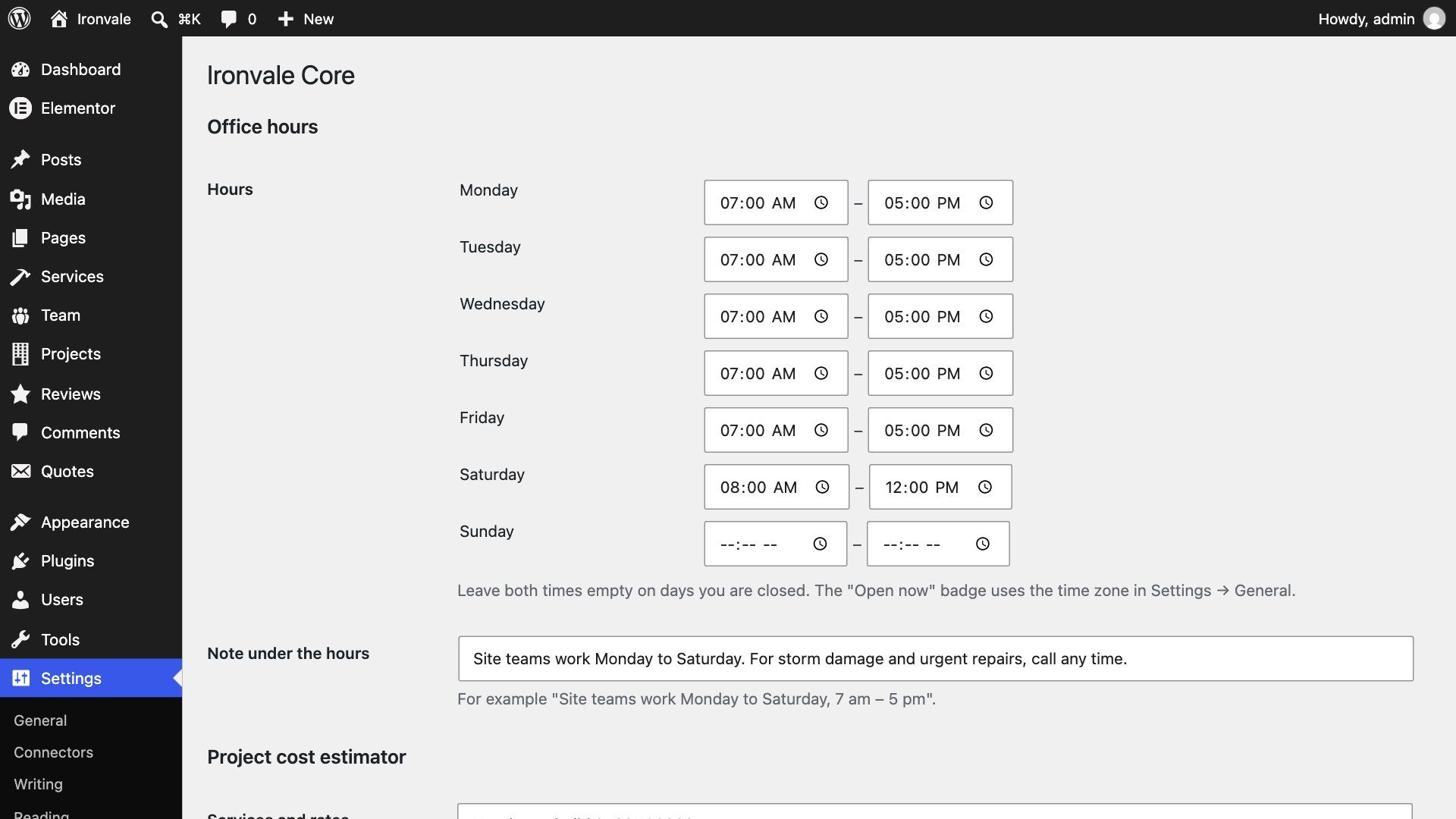
- Office hours with an "Open now" badge
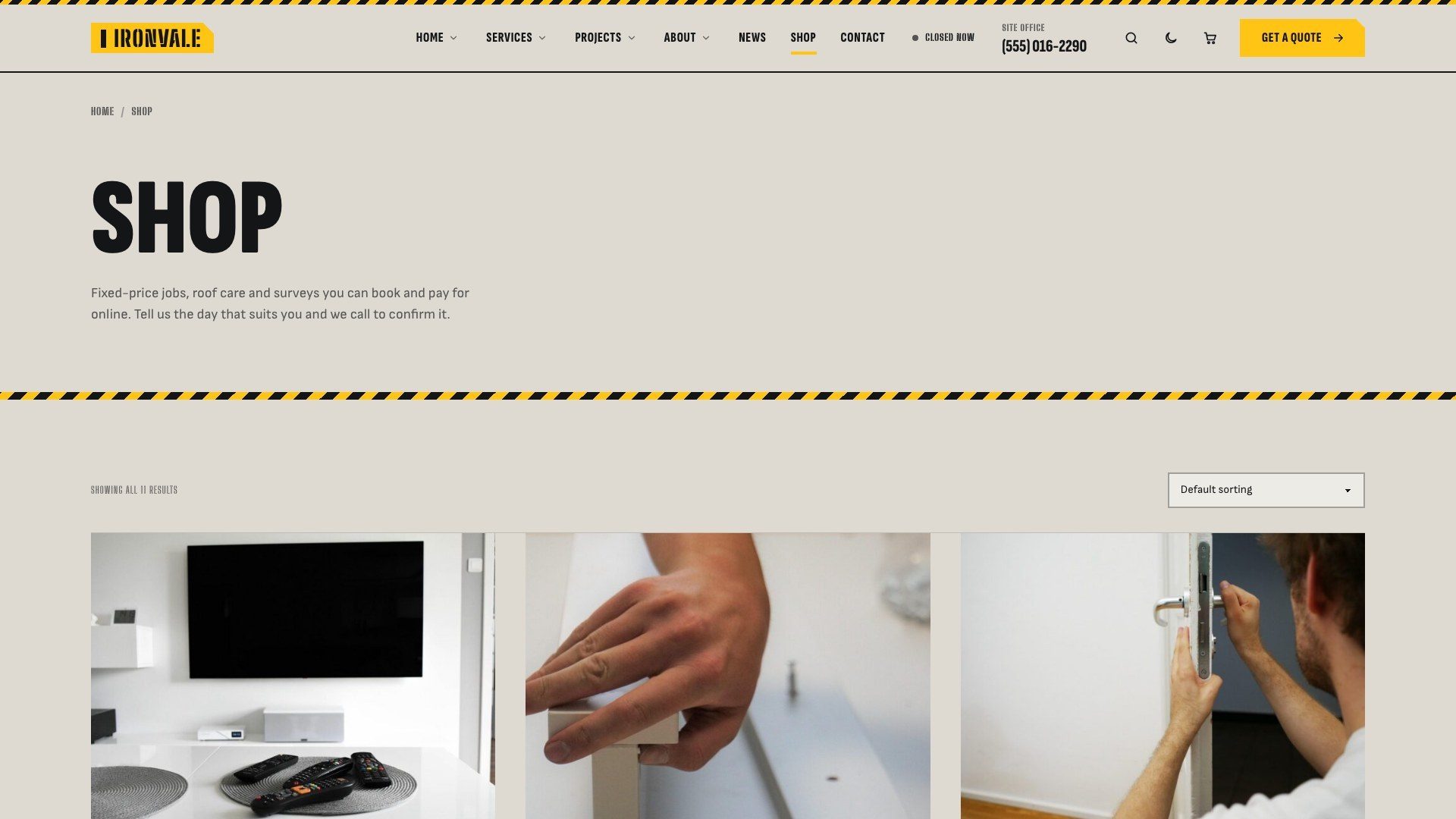
- Optional WooCommerce shop in the theme's style: fixed-price jobs, surveys and gift vouchers, with a header cart
- Hero film: a muted video behind the full-screen hero, with a pause button
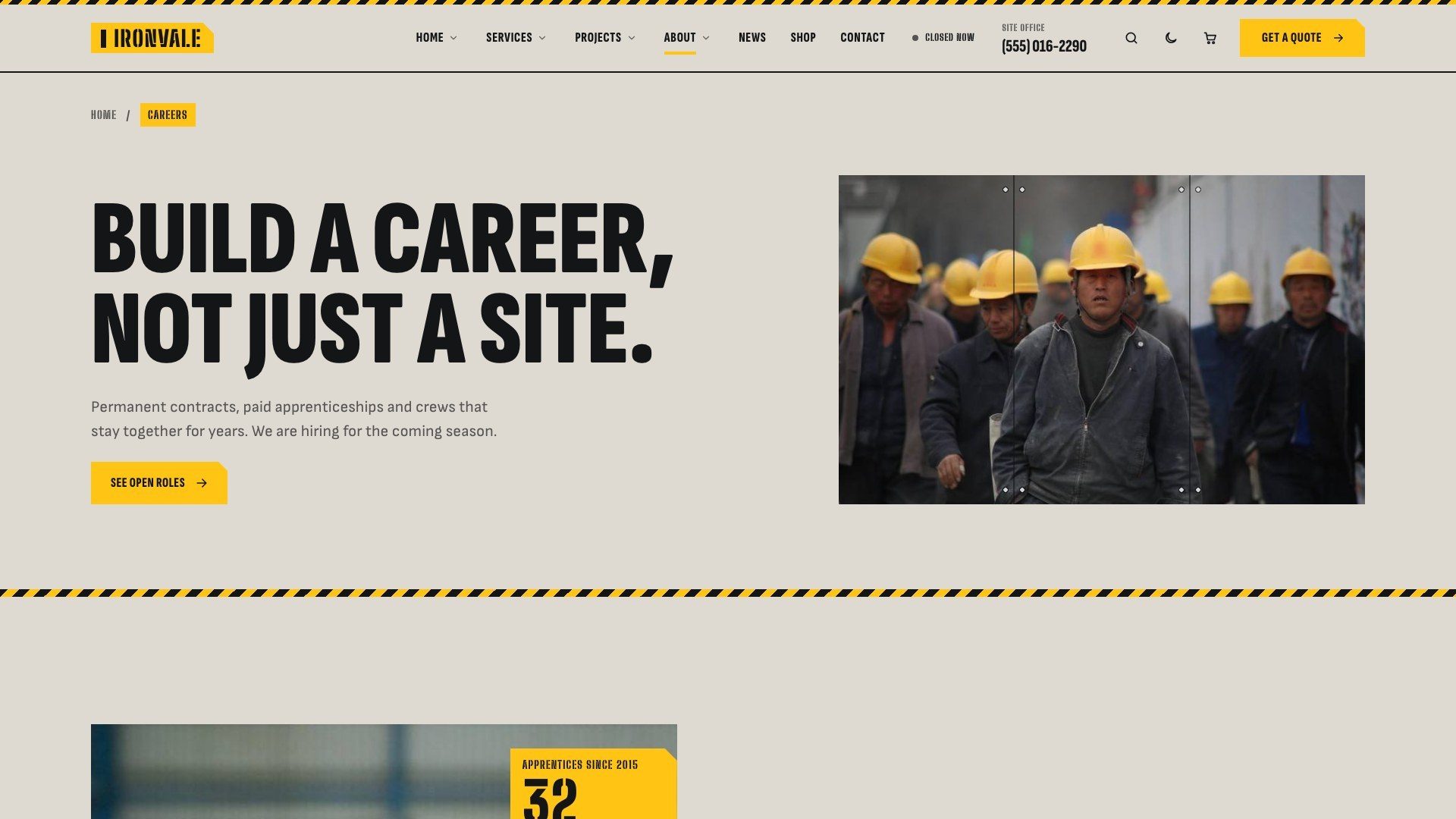
- Careers page with an open roles list, and a contact page with a map that loads on click
- Setup guide in the dashboard: plugin, demo and server checks with fixes
- 23 Elementor widgets (free Elementor), each with five background tones
- Every section also works as a shortcode
- Site gate header with the office phone, a footer call-to-action band and the office hours in one line
- Call / quote bar on phones
- Light and dark mode
- Colours and fonts from the Customizer, or any Google font by name
- Full-width or boxed layout
- Block patterns and every core block styled
- Self-hosted fonts (Sofia Sans Extra Condensed, Sofia Sans, Big Shoulders Stencil): nothing loads from Google unless you choose a Google font
- Translation ready, WPML config (widgets, post types, options), right-to-left support
- Child theme included
What is in the download
themeforest-ironvale-wordpress-theme/
├── ironvale.zip               ← the theme: upload this in WordPress
├── ironvale-child.zip         ← child theme, for your own code changes (optional)
├── plugins/ironvale-core.zip  ← the theme's plugin (also installed from inside the theme)
├── demo-content/              ← demo files for a manual import
├── documentation/             ← this guide, as HTML and PDF
└── licensing/                 ← GPL licence, font licences and credits
ironvale.zip, not the whole download. Uploading the download zip gives the error
"The package could not be installed. The theme is missing the style.css stylesheet."Screenshots
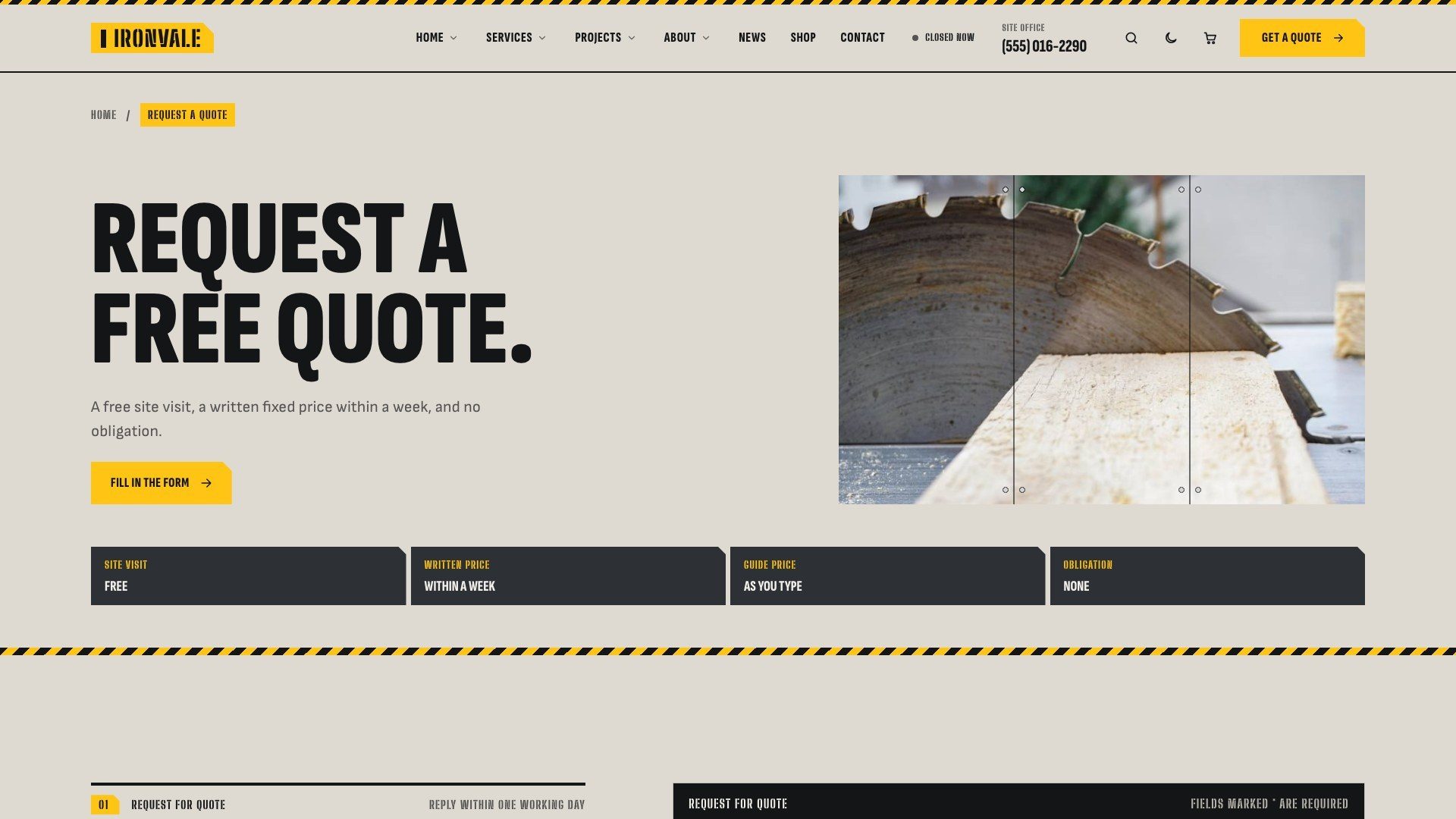
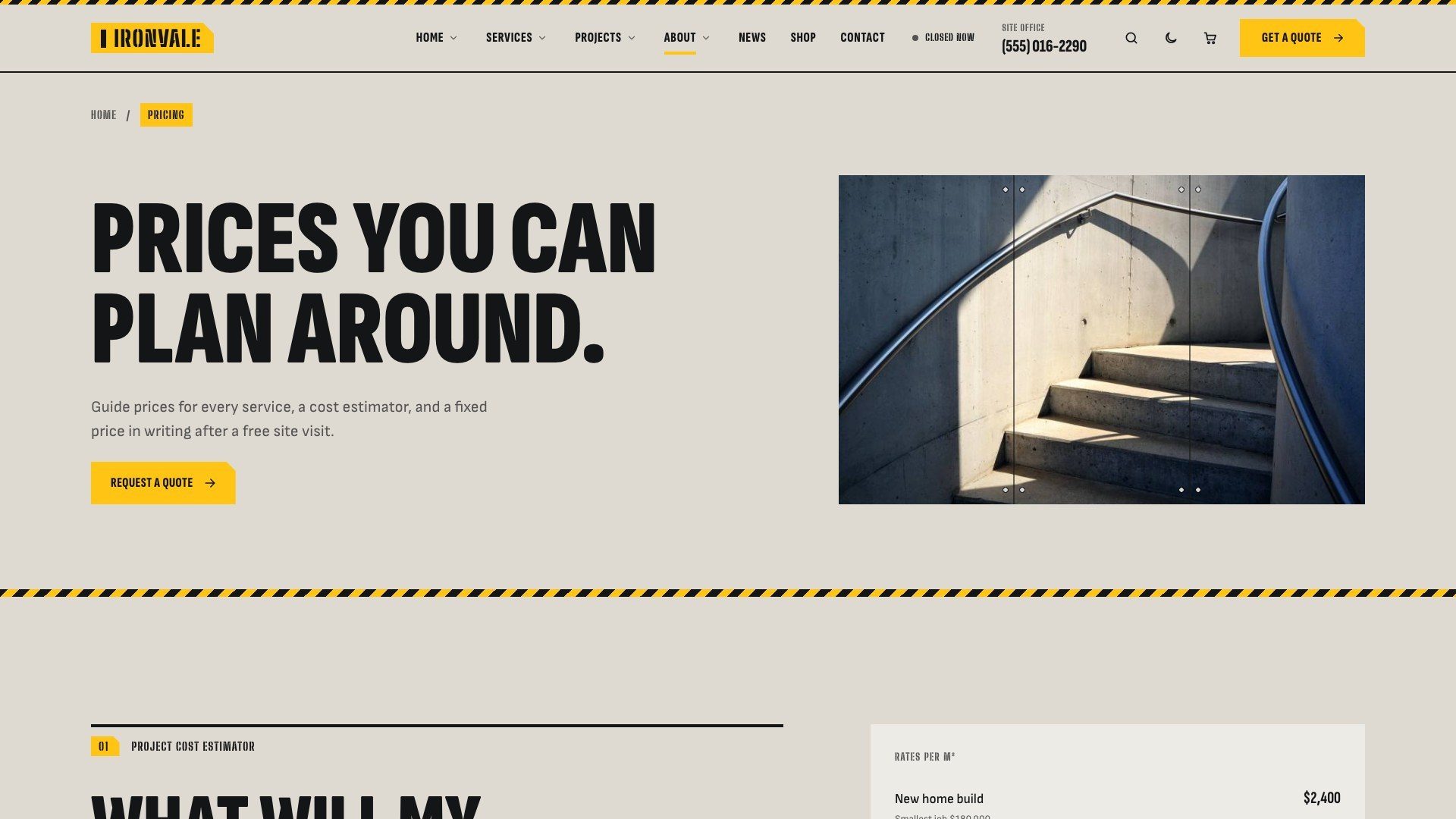
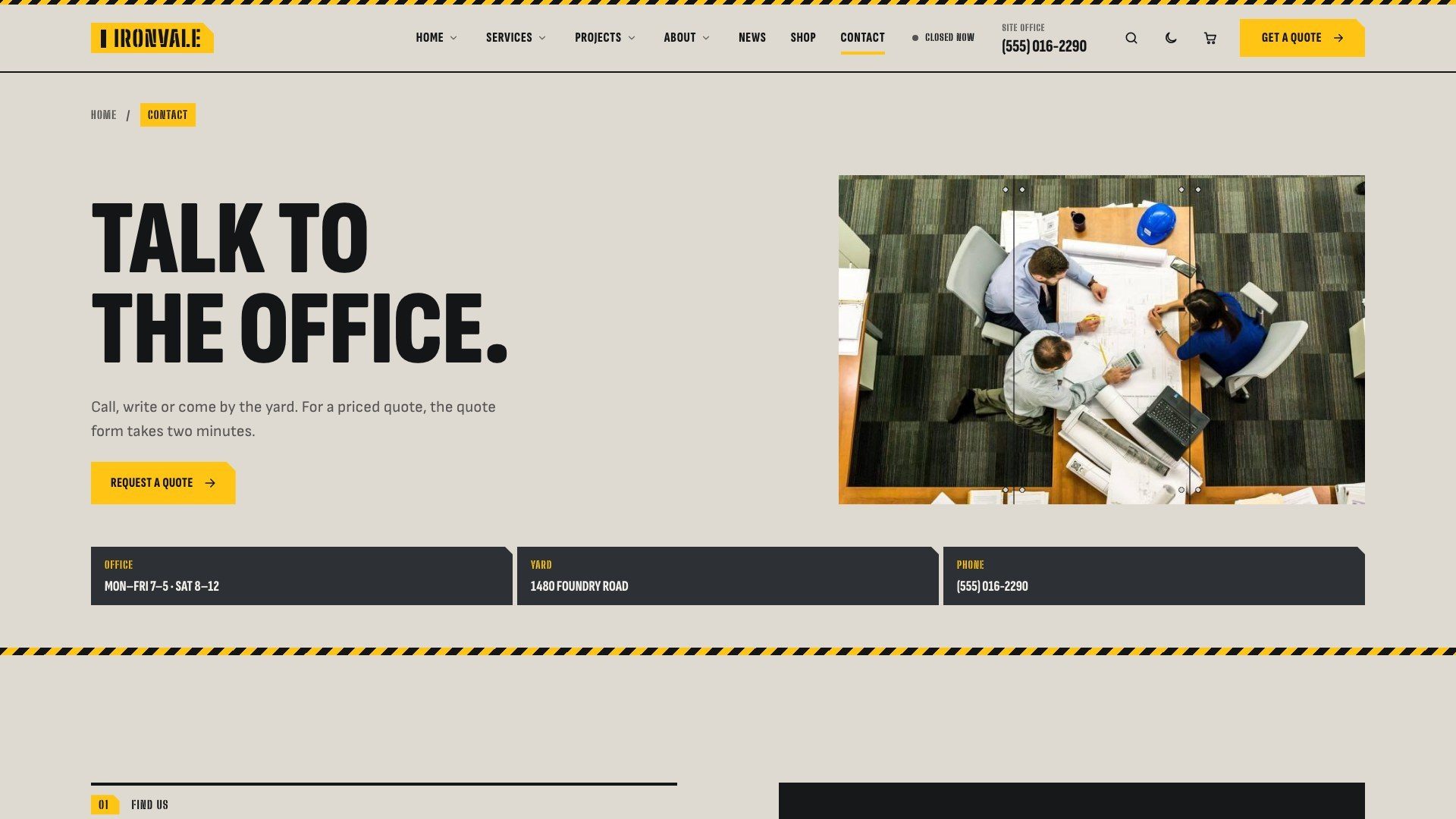
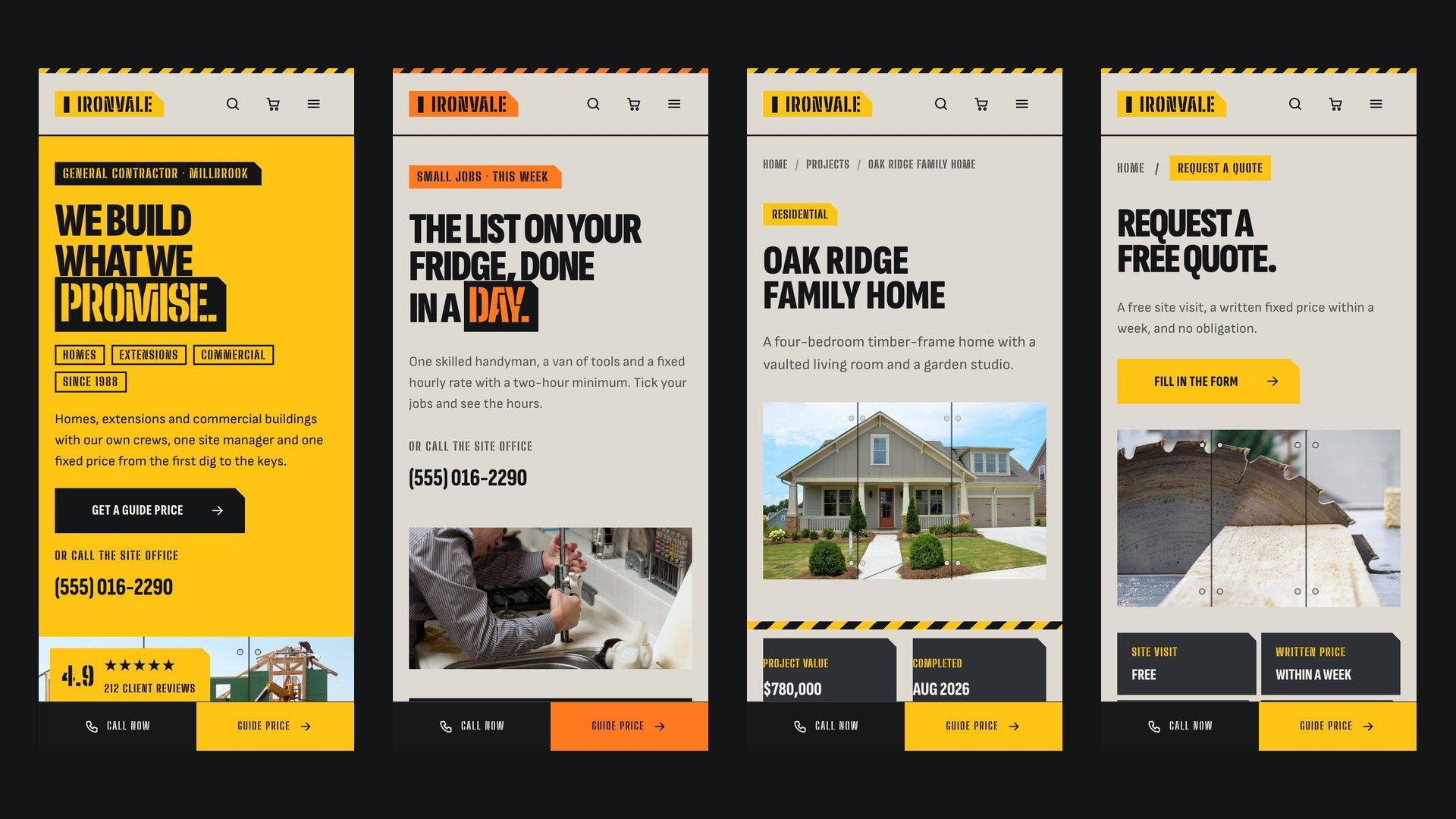
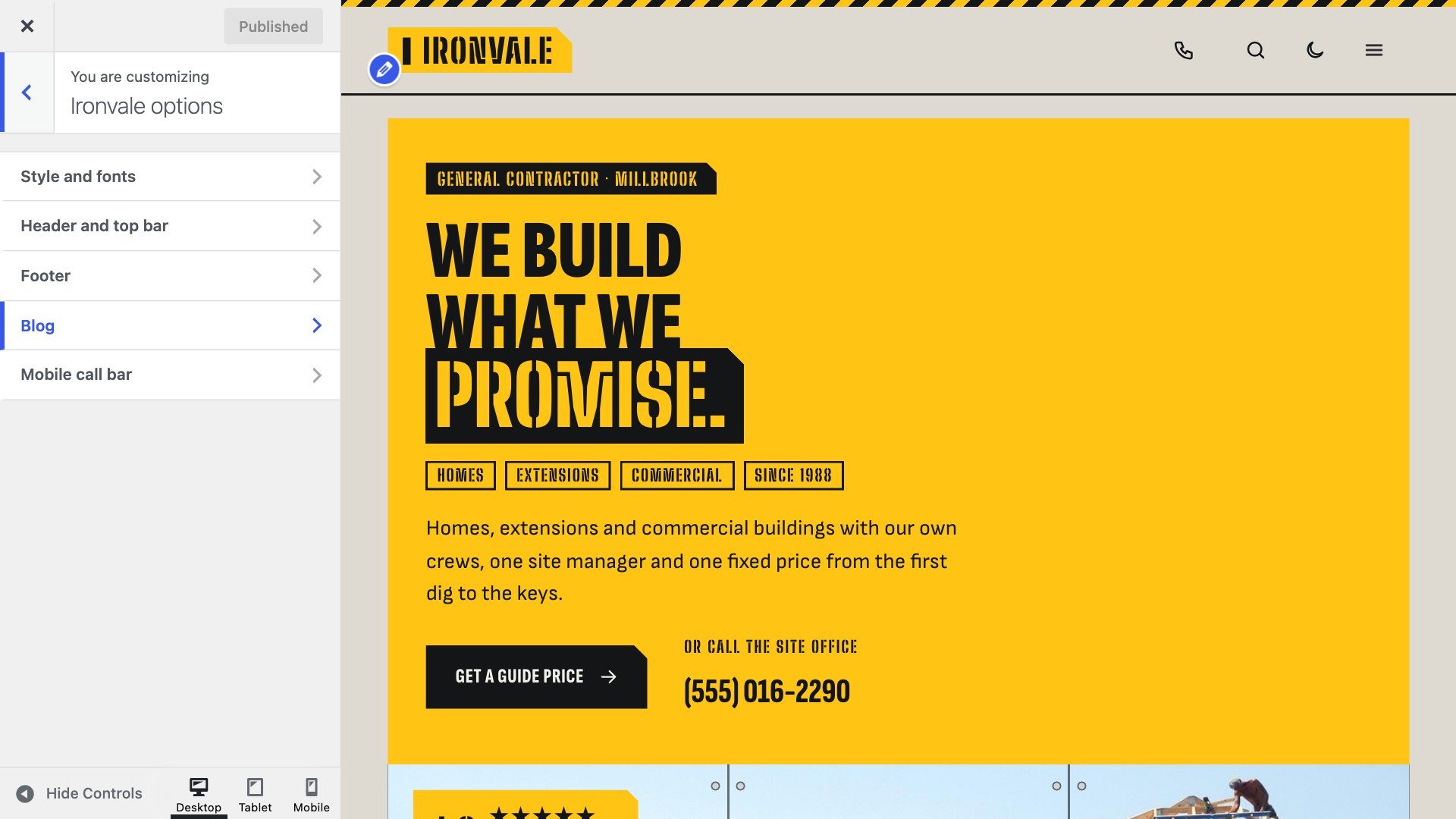
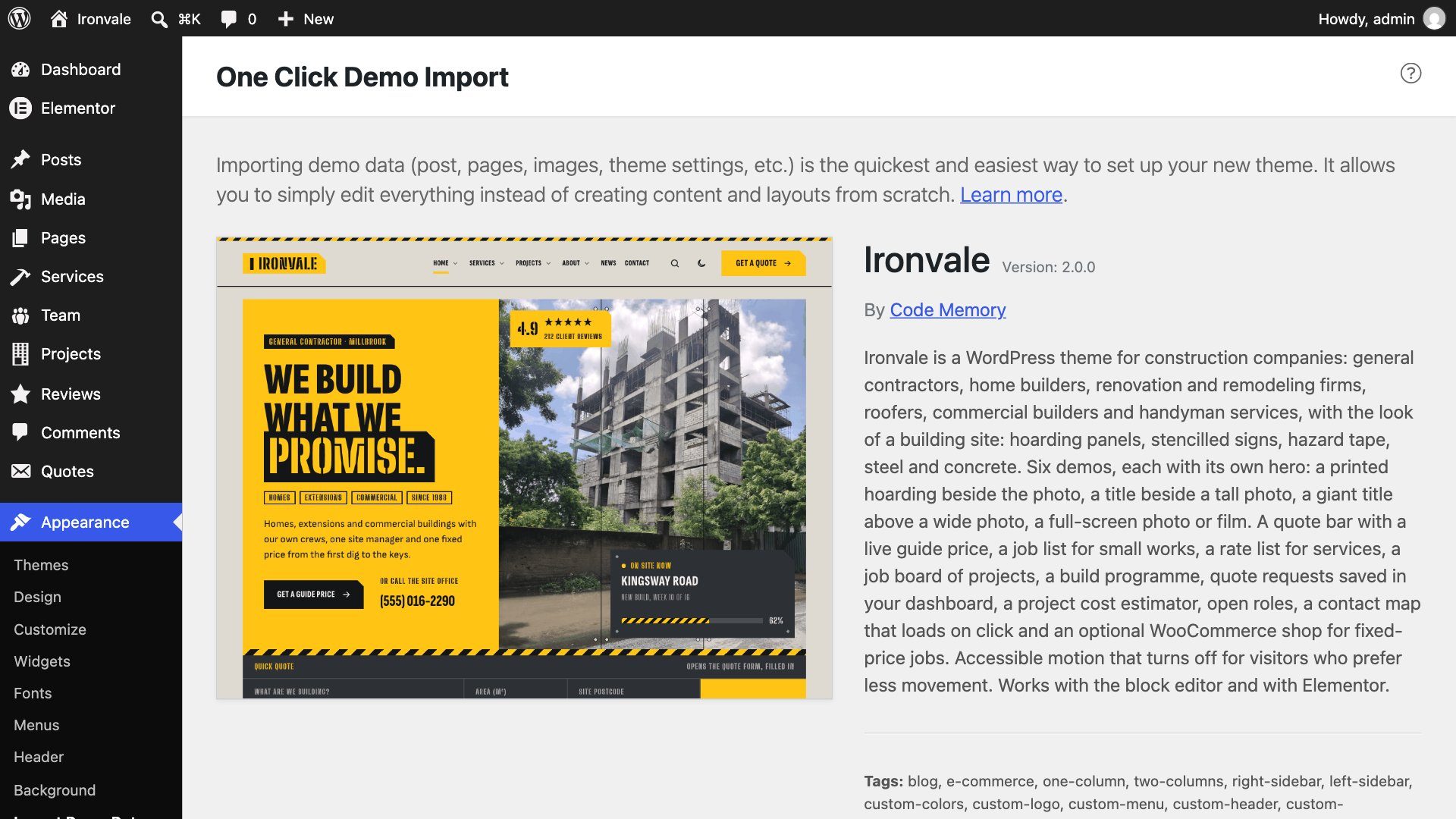
What you get after the demo import. The photos are the live demo's (licensed for the demo only; the import uses grey placeholders).
The website
The admin side
Requirements
- WordPress 6.5 or later (tested up to 7.1).
- PHP 7.4 or later (8.2 or later recommended).
- For the demo import: PHP
memory_limit256M,max_execution_time300, upload size 32M. Most hosts already allow this; if an import stops half-way, ask your host to raise these values.
Every plugin the theme uses is free from wordpress.org. Nothing needs a paid licence.
Installing the theme
- In your dashboard, go to Appearance → Themes → Add New Theme → Upload Theme.
- Choose
ironvale.zipand click Install Now, then Activate. - Optional: install and activate
ironvale-child.zipthe same way (see Child theme).
Upload by FTP instead: unzip ironvale.zip and copy the ironvale folder to
wp-content/themes/, then activate it under Appearance → Themes.
Plugins
After activation, a notice at the top of the dashboard lists the plugins the theme uses. Click Begin installing plugins (or go to Appearance → Install Plugins), select them all, choose Install, then activate them.
| Plugin | What it adds | |
|---|---|---|
| Ironvale Core | Required | Services, projects, team, types of work, sectors, reviews, quote form, office hours, project cost estimator, open roles, shop products, widgets, shortcodes and the demo import. Included with the theme. |
| Elementor | Recommended | The free page builder used for the demo pages. The theme's own widgets appear in Elementor's Ironvale group. |
| One Click Demo Import | Recommended | Imports a demo in one click. You can remove it after the import. |
| WooCommerce | Optional | The shop: sell fixed-price jobs, surveys and gift vouchers. Styled by the theme; leave it out if you do not sell online. |
The theme works without any plugin: posts, pages, menus, widgets and search are styled the same. The plugin is needed for the construction features (services, projects, team, quote form…).
Third-party plugins and services
The theme needs nothing paid. It uses free plugins from wordpress.org, and your site runs on services you choose yourself. These providers are not part of this item: each has its own terms and its own pricing tiers (some plugins sell optional paid upgrades), and you are responsible for any costs from them.
| Provider | What it is for | Cost |
|---|---|---|
| WordPress | The software the theme runs on | Free (GPL) |
| Elementor | Page builder used for the demo pages | Free; Elementor Pro is optional and not needed |
| One Click Demo Import | Imports a demo | Free |
| Web hosting and a domain name | Where your site lives | Paid, from the host and registrar you choose |
| Email delivery (for example WP Mail SMTP with an SMTP provider) | Sends the theme's form emails reliably | The plugin is free; the email provider may charge |
| Loco Translate or Poedit | Translating the theme (optional) | Free versions; paid upgrades optional |
| WooCommerce | The optional shop | Free; paid extensions optional |
| Google Maps (map in the Contact section) | Shows your address on a map, only after the visitor clicks "Show the map" | Free for this kind of embed |
| Google Fonts (optional) | Only if you type a Google font name in the Customizer | Free |
Fonts and icons are inside the theme and no visitor data is sent anywhere. Two optional features load from Google, and only when you turn them on: the map in the Contact section (only after the visitor clicks Show the map) and a Google font typed in Customize → Ironvale options → Style and fonts.
Importing a demo
The import gives you the demo site: pages, services, projects, team members, reviews, posts, menus, widgets and, with WooCommerce, the shop products and the Customizer settings. Use it on a new site: it adds content next to what you already have.
- Install the plugins above.
- Go to Appearance → Import Demo Data.
- Pick a demo and click Import. It takes one to three minutes; keep the page open.
- Done: visit your site. The home page, menus and blog page are already set.
| Demo | Home page | Accent |
|---|---|---|
| General contractor | /home-general/ | #ffc414 |
| Home builder | /home-homes/ | #2e9e57 |
| Renovation & remodeling | /home-renovation/ | #b84a28 |
| Roofing company | /home-roofing/ | #d62f27 |
| Commercial builder | /home-commercial/ | #ff9d1c |
| Handyman services | /home-handyman/ | #ff7a1f |
All six home pages are imported with every demo; the demo you pick decides which one is the front page and which colours and header the Customizer uses. To switch later, go to Settings → Reading and choose another home page.
Manual import
If the one-click import is blocked by your host, use the files in demo-content/:
- Tools → Import → WordPress (install the importer when asked) → upload
content.xml. - Install Widget Importer & Exporter → Tools → Widget Importer & Exporter → upload
widgets.wie. - Install Customizer Export/Import → Appearance → Customize → Export/Import → upload
customizer-<demo>.dat. - Appearance → Menus → Manage Locations: set the main, top bar and footer menus. Settings → Reading: choose the home and blog pages.
After the import: your details
The demo uses a made-up phone number, address, office hours and rates. Replace them with yours, in this order:
- Phone number and top bar: Appearance → Customize → Ironvale options → Header and top bar. Set Phone number, Top bar text (a short line such as your office hours) and the Label next to the phone (the demo says "Free site visits"). Every "Call" button on the site uses this number.
- Logo and site icon: Appearance → Customize → Site Identity.
- Colours: Appearance → Customize → Colors. The six demo home pages each have their own accent colour (see Page options); clear it there to use the Customizer colour.
- Quote page, office hours, estimator rates and quote emails: Settings → Ironvale Core (see Quote requests, Office hours and Project cost estimator).
- Footer widgets: Appearance → Widgets → Footer column 1–4: edit the Contact details widget (address, phone, email).
- Your content: edit the services, projects, team and reviews in the dashboard menus of the same names, and replace the grey placeholder photos with your own.
Services, projects, team and reviews
The Ironvale Core plugin adds four content types, a Types of work list and a Sectors list to the dashboard. Each content type has a Details box under the editor.
| Menu | Used for | Details |
|---|---|---|
Services/services/ | One page per service you sell. Shown by the Services widget and the services archive, and listed in the quote form and the quote bar. | Icon, price from ("$2,100"), price note ("per m², shell and roof"), how the price works (per unit of area, or per hour, visit or job), typical timeline, crew, warranty, what is included (one per line) and an "At a glance" list (one line per item as label|value, for example Permits|We file them for you). |
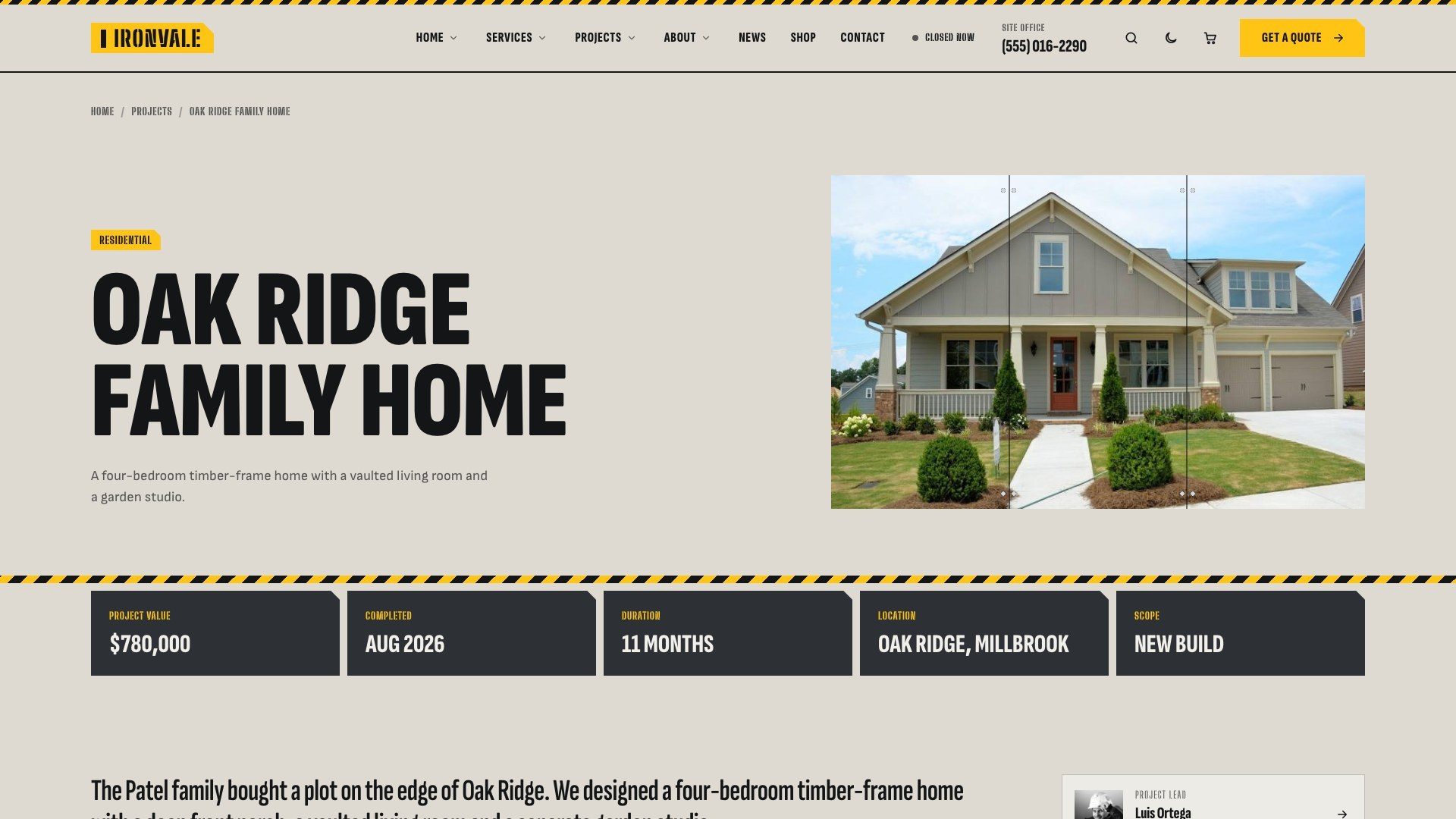
Projects/projects/ | Your finished work. Shown by the Projects widget as portfolio cards, newest first. | Completed on (a date), duration ("14 weeks"), service, project value ("$480,000"), location and a project timeline (one line per stage as when|what, for example Week 1|Site set-up and demolition). |
Team/team/ | The people clients meet: estimators, site managers, trades. | Role, years with you, licences and certificates, specialty, where they are based and an optional email. The featured image is the portrait (a tall photo works best). |
| Reviews | Client reviews shown by the Reviews widget (no page of their own). | Rating, reviewer ("Homeowner, Millbrook"), project or service, where the review was left. The title is the reviewer's name; the text is the review. |
Sectors (under Projects) group projects and services by client type, for example Residential or
Commercial. Each sector has its own page at /sector/<name>/, and the Sectors widget shows each one as a
photo tile with its number of projects (the photo comes from the newest project in that sector).
Types of work (under Projects) group projects by the kind of job, for example Extensions or Roofing,
with a page at /work/<name>/. A project can have several of each; the Projects widget can show one
sector or one type of work only.
Turn on Show filter buttons by sector in the Projects widget (or filter="yes" in the shortcode) to add a
button per sector above the cards; visitors click one to see only those projects.
The featured image of a service, project or post is used on its card and at the top of its page. Use landscape photos at least 1600 × 900 px.
Quote requests
The Quote form widget (or the [ironvale_quote] shortcode) asks for the client's
name, phone and email, the service, the approximate area, the start date, the site postcode, a budget range, how to
reply (email, phone call or site visit) and an optional message. Name and a phone number or email are required. Spam
protection is built in (a hidden field and a limit on repeated sends) and no other plugin is needed.
- When the client picks a service priced per unit of area and types the area, the form shows a guide price as they type (rate × area). Services priced per hour, visit or job show no guide price. The saved request gets its own estimate, worked out from the service rate on the server.
- Every request is saved under Quotes in the dashboard, with a counter of new ones. Open a request to see the details and set its status: New, Contacted, Site visit booked, Quote sent, Won, Lost.
- The services in the form come from your Services, so they stay up to date.
- Settings → Ironvale Core → Quote enquiries: choose the Quote page (the page with the Quote form widget), turn email alerts on or off, choose the address (empty = the site admin email), list your Budget ranges (one per line; leave empty to hide the budget field), and edit the thank-you message and the privacy note under the form.
- Emails are sent by WordPress. If they do not arrive, install an SMTP plugin such as WP Mail SMTP; requests are saved in the dashboard either way.
The quote bar at the top of the home pages fills this form in for the client: see The hero.
Use any unit of area: set Unit of area (m² or sq ft) under Project cost estimator; the quote bar, the form and the estimator all use it.
The hero: layouts, quote bar and job list
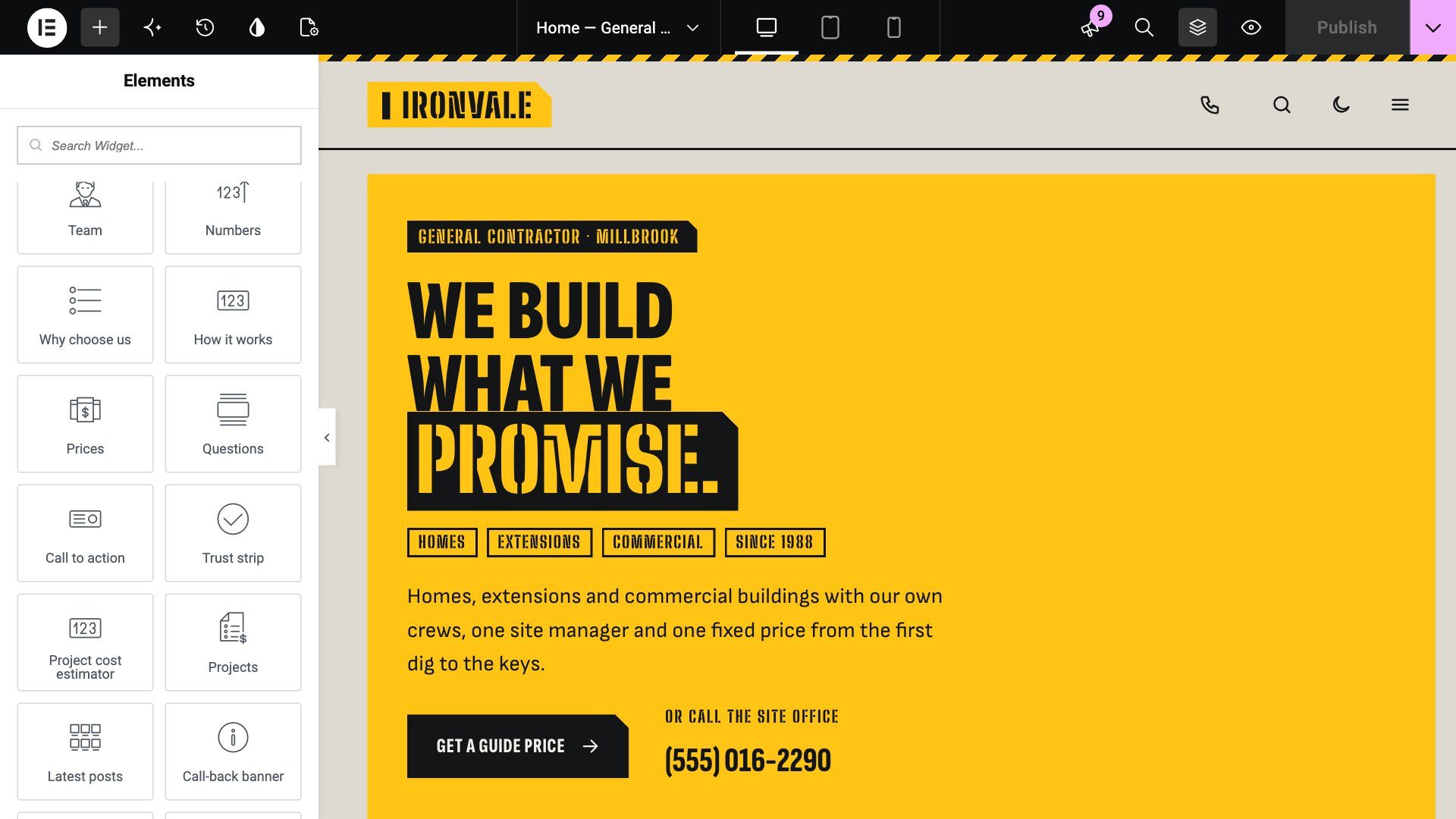
Every demo home page opens with the Hero widget. Edit it in Elementor and pick its Layout:
| Layout | What it shows | Demo |
|---|---|---|
| Site hoarding | The title on an accent panel beside a bolted photo board with an "On site now" card, and the quote bar as a steel strip underneath. | General contractor |
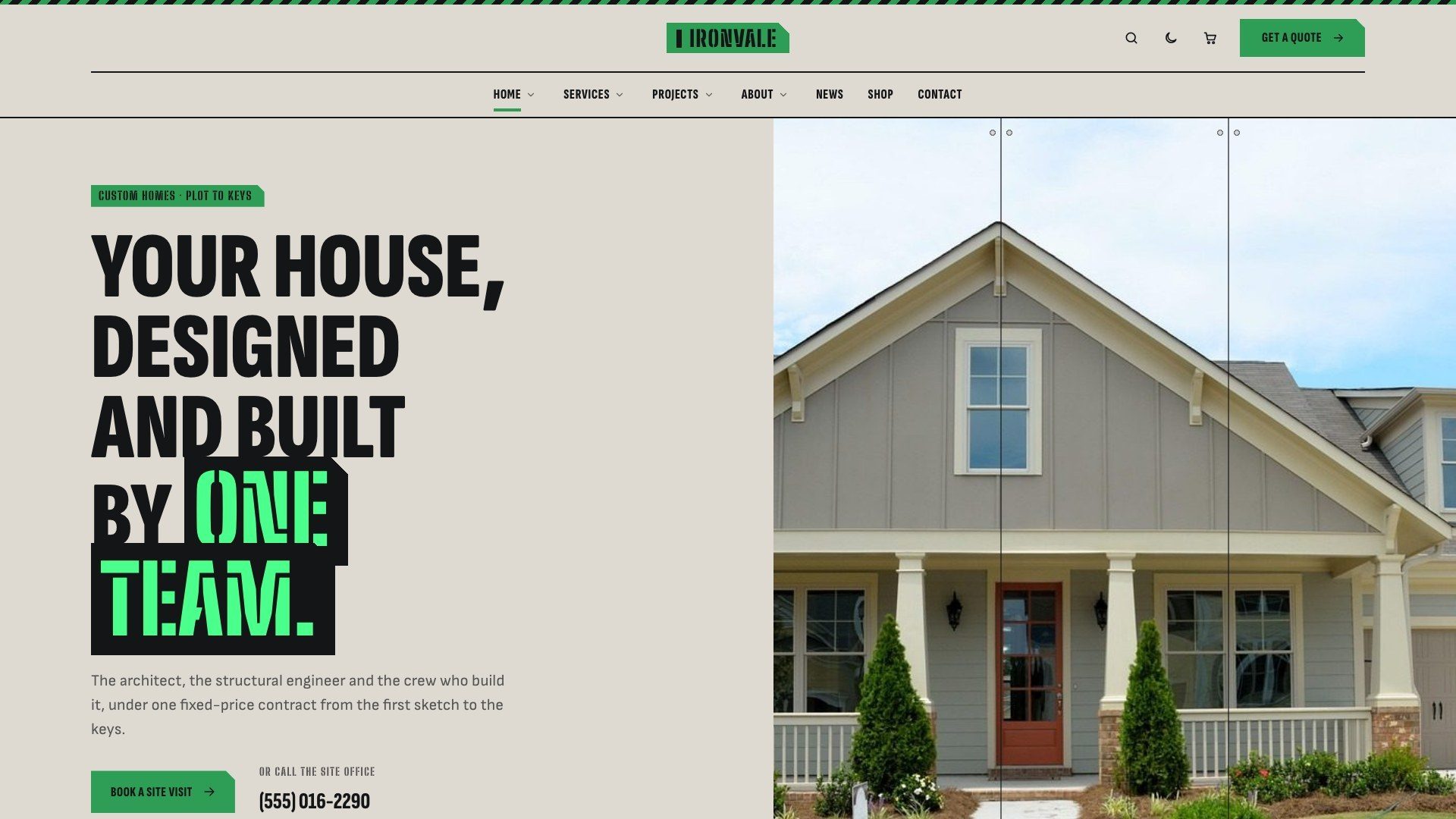
| Title beside a tall photo | The title on the left; on the right a tall photo, or the job list when you fill it in. | Home builder, Handyman |
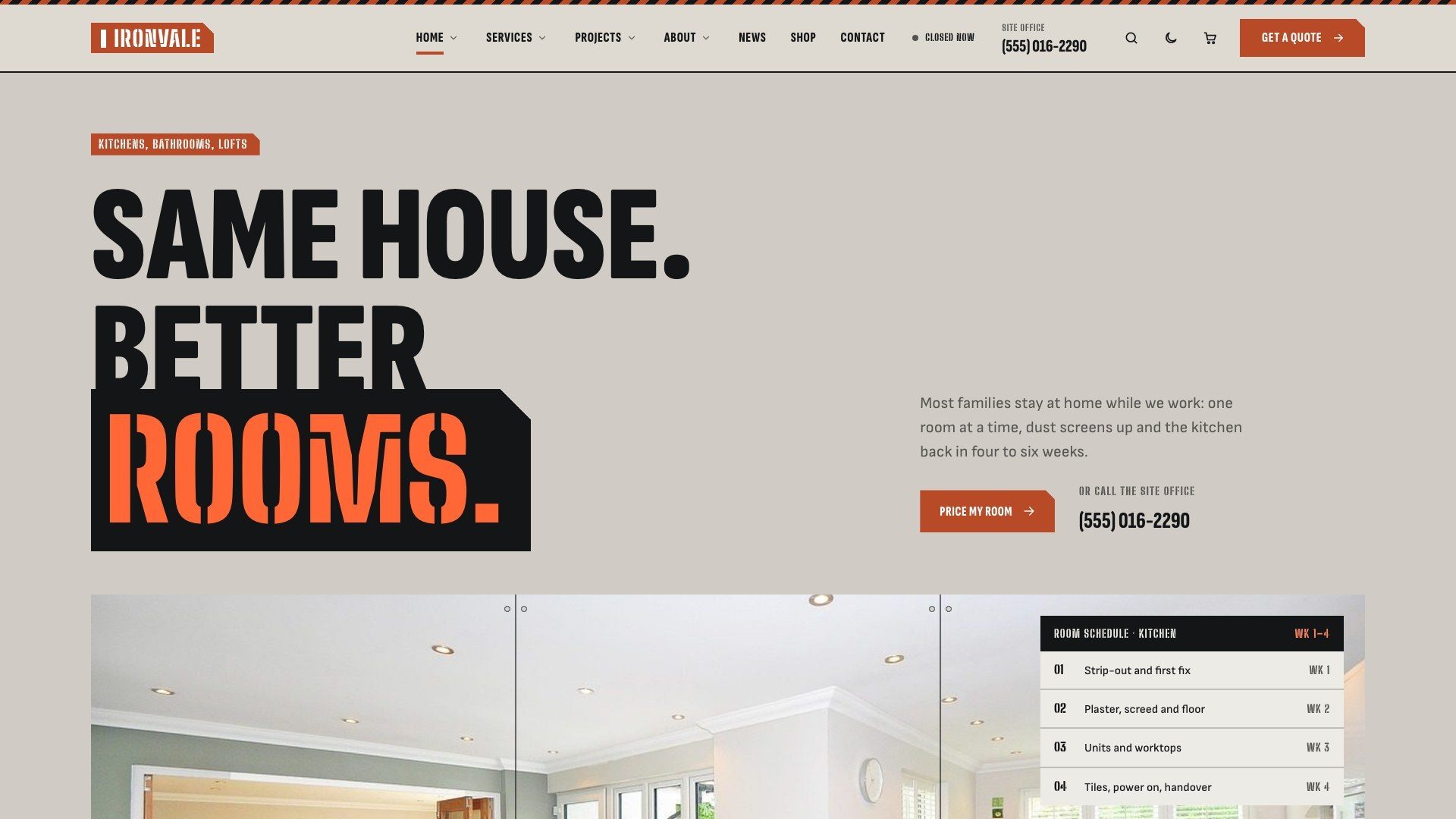
| Giant title above a wide photo | A large title, then a wide photo with a schedule card. | Renovation |
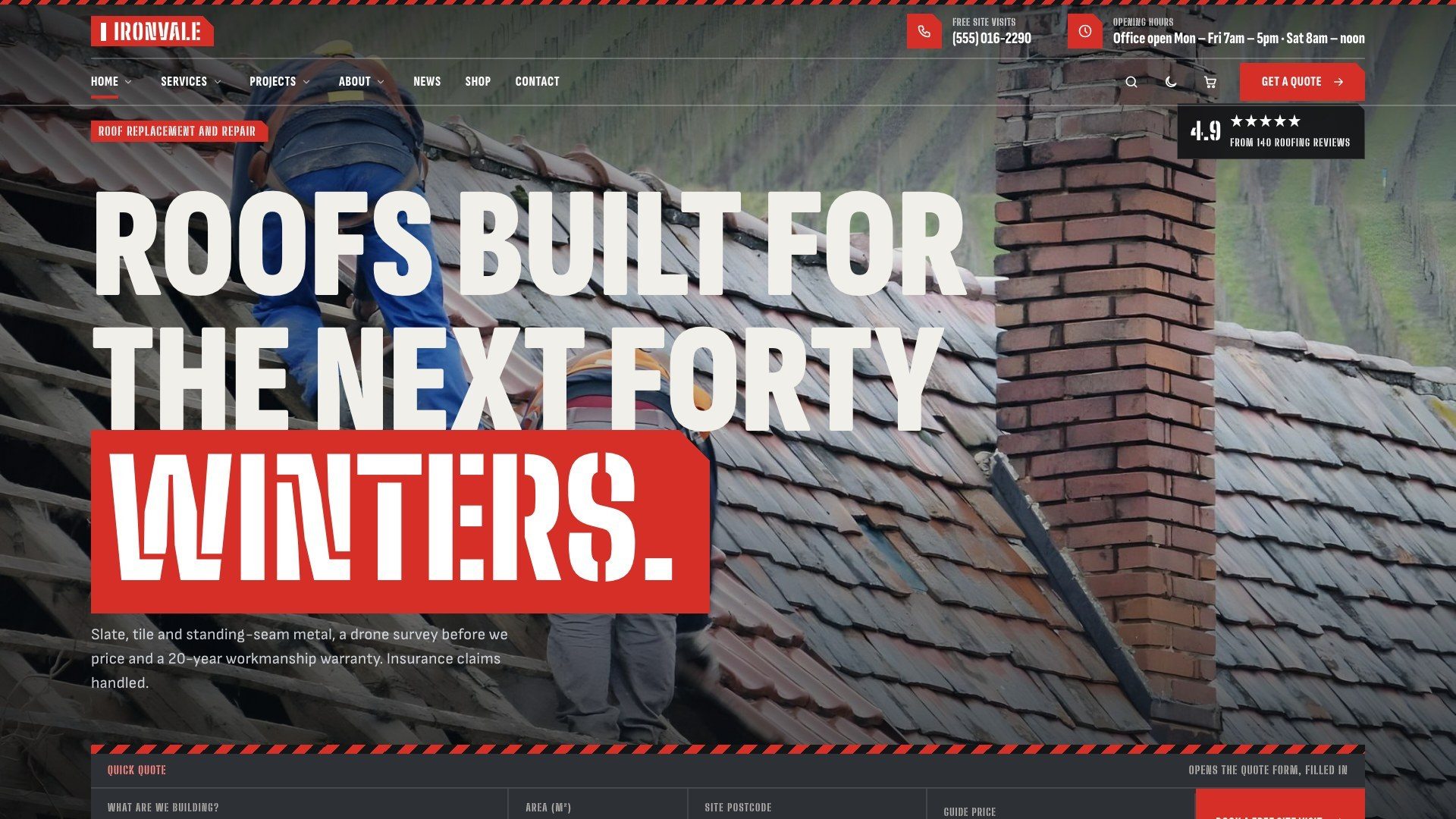
| Full-screen photo | The title over a photo, or over a muted film (see Hero film). | Roofing, Commercial |
| Title for inner pages | A compact title band beside a photo, with fact plates under it. | Services, Projects, About… |
Background gives the title-beside-photo and giant-title layouts the page colour, concrete or site dark.
Small label above the title sits on a plate above it, for example General contractor · Millbrook.
Wrap a word of the title in <em> to stencil it on a plate: We build what we <em>promise.</em>.
Facts under the title
Write the Trust points one per line. Plain lines show as a tick list (Free site visit).
Lines written as Label|Value show as fact plates, like the boards on a site fence: Build|11 months.
Site card and schedule card
Fill in the "On site now" card fields (project name, stage and percent complete) to show a live job beside the
photo. To show a programme instead, fill in Schedule card: one step per line as Step|When, for example
Strip-out and first fix|Wk 1; the card's project name becomes its heading and Schedule card: note sits
on the right of it.
The quote bar and the guide price
Turn on Show the quote bar. Visitors pick a service, type the area and their postcode and press the button: the quote page opens with the form already filled in. Turn on Quote bar: show the live guide price as well and the bar shows a price while the visitor types (the area times the service's rate from its Details box); the button then reads Book a free site visit. Services priced per hour, visit or job show no guide price. The Get a quote for this button on each service page opens the same form with that service chosen.
The job list (small works)
In the Title beside a tall photo layout, fill in Job list and the list replaces the photo on the right:
- Write one job per line as
Job|hours, for exampleHang 3 doors|2.5. Add*after the hours (2.5*) to tick that job to start with. - Set the hourly rate (a number, for example
85) and hours charged at least (for example2for a two-hour minimum). - Set Job list: service to the exact name of the service the form should pick (the demo uses Handyman Services), and change the heading and the button text if you like.
Visitors tick jobs and see the number of jobs, the hours and the price. The button opens your quote page with the jobs written into the message and the service chosen; the client adds their details and sends it. Every value that arrives this way is cleaned on your server before it is shown.
Office hours
Settings → Ironvale Core → Office hours: set an opening and a closing time for each day. Leave both empty on days you are closed, and add an optional note (for example "Site teams work Monday to Saturday").
- The Office hours widget (Elementor) or
[ironvale_hours]shortcode shows the hours beside your address and phone number. The Ironvale: Office hours widget shows them in the sidebar or footer. - Today's row is highlighted, and a badge says Open now (with the closing time) or Closed now. The badge uses the time zone in Settings → General, and it is worked out in the visitor's browser, so it stays right even when your pages are cached.
- The week starts on the day set in Settings → General → Week Starts On; times use the time format set there.
Project cost estimator
Settings → Ironvale Core → Project cost estimator: list your services, one per line as
Service|rate per unit of area|smallest job, for example Kitchen remodel|1200|18000. Set the
currency symbol, the unit of area (m² or sq ft), the large-project discount and the area that gets it, and the note
under the result.
The Project cost estimator widget (or [ironvale_calculator]) lets a visitor pick a
service and type the area. It shows the total and the price per unit ("About $24,000 in total, or $1,200 per m²"),
never less than the smallest job, worked out in the browser: nothing is sent or stored. Turn on List the services and rates
in the widget to show every service with its rate beside the estimator.
Page options
Each page has a Page options box in the editor sidebar:
- Accent colour for this page: overrides the Customizer accent on this page only. The demo uses it to give each demo home page its own colour.
- Colour scheme: light or dark for this page only (the Commercial builder demo is dark).
- Header layout: classic, centered or contact, for this page only.
- Header over the first section: Yes makes the header see-through and lays it over the page's first section. Use it on pages that open with a full-screen photo (the Hero widget with the Full-screen photo layout). Projects and services with a featured image always open this way.
- Footer call to action: Hide removes the call-to-action band at the top of the footer on this page, for pages that already end with their own (a Call to action or Quote form widget).
Leave them empty to follow the Customizer.
Page templates
| Template | Use |
|---|---|
| Default | Page title band, content and no sidebar. |
| Full width, no title | For pages built with Elementor: the content fills the screen and you add your own hero. All demo pages use it. |
| Full width with title band | The title band, then full-width content. |
Motion and footer
Appearance → Customize → Ironvale options → Style and fonts:
- Animate text and photos as they scroll into view: headings rise word by word, photos are uncovered behind a strip of hazard tape, numbers count up, the project rail moves sideways as the page scrolls and marquee bands run. Visitors whose device asks for less motion always get the still version, with everything visible.
- Smooth scrolling with the mouse wheel: eases wheel scrolling on desktops (Lenis). Touch screens keep their native scrolling.
- Load jQuery at the end of the page: an optional speed setting, off by default. When on, the first screen shows without waiting for jQuery. Ironvale, Ironvale Core and Elementor do not need it earlier, but some plugins print jQuery code in the page head: if one stops working, turn this off again.
Appearance → Customize → Ironvale options → Header and top bar → Number the sections in their labels: each section label starts with its number on a plate (01, 02, 03…), like the signs along a site fence. Untick it to hide the numbers.
Appearance → Customize → Ironvale options → Footer: the call-to-action band (its line, the phone number and the quote button come from your header settings), the footer text and the back-to-top button. The footer's Ironvale: Office hours widget shows the week in one line per run of days (Mon–Fri 7:00 am – 5:00 pm).
In Elementor, the Marquee widget runs a band of words (one per line) and the Statement widget shows a large paragraph that lights up word by word as it scrolls past.
Customizer settings
Appearance → Customize. Colours are in the Colors section; everything else is in the Ironvale options panel. Changes show in the preview before you publish them.
| Setting | Type | Default |
|---|---|---|
| Colors | ||
| Accent colour (buttons, links, icons) | color | #ffc414 |
| Ink colour (text, header, footer) | color | #141516 |
| Paper colour (page background) | color | #dedad2 |
| Site dark colour (dark bands, footer and menus) | color | #17181a |
| Style and fonts | ||
| Colour scheme | select | Light |
| Show a light/dark switch in the header | checkbox | On |
| Heading font | select | Sofia Sans Extra Condensed |
| Body font | select | Sofia Sans |
| Or any Google font for headings: type its name, for example Archivo. It then loads from Google Fonts; leave empty to keep the included fonts. | text | empty |
| Or any Google font for body text, for example Inter. | text | empty |
| Boxed layout: on wide screens the site sits in a centred frame | checkbox | Off |
| Body text size (px) | number | 17 |
| Corner rounding (px) | number | 0 |
| Animate text and photos as they scroll into view (always off for visitors who ask their device for less motion) | checkbox | On |
| Smooth scrolling with the mouse wheel | checkbox | On |
| Load jQuery at the end of the page, so pages show sooner (turn this off if a plugin needs jQuery earlier) | checkbox | Off |
| Header and top bar | ||
| Header layout | select | Site gate: logo plate, menu, office status, phone and button in one row |
| See-through header over full-screen photo heroes (pages that ask for it in Page options) | checkbox | On |
| Keep the header in reach while scrolling (it hides on the way down and returns on the way up) | checkbox | On |
| Show the search button | checkbox | On |
| Header button text | text | empty |
| Header button link | url | empty |
| Show whether the office is open now (uses the office hours in Ironvale Core) | checkbox | On |
| Number the sections in their labels (01, 02, 03…), like signs along a site | checkbox | On |
| Show the top bar | checkbox | Off |
| Top bar text (for example your office hours) | text | empty |
| Phone number | text | empty |
| Label next to the phone (for example "Free site visits") | text | empty |
| Footer | ||
| Show the call-to-action band at the top of the footer | checkbox | On |
| Call-to-action heading (leave empty for the default) | text | empty |
| Widget columns | select | 4 |
| Footer text (links allowed). Leave empty for the site name and year. | textarea | empty |
| Show a back-to-top button | checkbox | On |
| Blog | ||
| Post list layout | select | Grid of cards |
| Sidebar | select | Right |
| Show the author on posts | checkbox | On |
| Show the date on posts | checkbox | On |
| Show related posts under each post | checkbox | On |
| Mobile call bar | ||
| Show a call / quote bar at the bottom of phone screens | checkbox | On |
| Second button text (the first button calls your phone number) | text | empty |
| Second button link | url | empty |
The site title, tagline, logo, site icon, background and homepage settings are WordPress's own, in Site Identity, Background image and Homepage Settings.
Widgets
Appearance → Widgets. Areas: Blog sidebar and Footer column 1 to Footer column 4 (set the number of footer columns in the Customizer). The plugin adds three widgets, named Ironvale: … in the widget list:
- Contact details — phone, email, address, each with a link.
- Office hours — your hours from Settings → Ironvale Core, with an "Open now" badge.
- Services list — links to your services; the current service is highlighted.
Building pages with Elementor
All demo pages are built with the free Elementor plugin and the theme's widgets.
- Create a page, set its Template to Full width, no title, and click Edit with Elementor.
- Search for the widget or open the Ironvale group in the left panel and drag a widget onto the page.
- Edit its text and options in the left panel. Every widget has a Background option (light, paper, dark or accent colour) so sections alternate like the demo.
The widgets fill themselves from your content: Services, Sectors, Projects, Team, Reviews
and Latest posts show the items you add in the dashboard. List fields (prices, steps,
questions…) take one item per line, with the parts separated by |, as the help text under each field shows.
Elementor's own Google Fonts loading is switched off by the demo import, so the site keeps using the theme's self-hosted fonts.
Without Elementor: shortcodes
Every widget is also a shortcode, so you can build the same sections in the block editor: add a Shortcode block and type, for example:
[ironvale_projects count="6" columns="3" filter="yes"]
[ironvale_services count="6"]
[ironvale_quote title="Request a quote"]
Options are the same as in Elementor. In list options, separate items with || and parts with
|. Images take an attachment ID (Media → Library → the number in the address) or a full URL.
Hero — [ironvale_hero]
| Option | What it does |
|---|---|
layout | Layout Choices: hoarding, cover, split, stacked, page |
primary_label | Button text |
primary_url | Button link |
show_phone | Show the phone number (from the Customizer) |
secondary_label | Second button text (when the phone is hidden) |
secondary_url | Second button link |
badges | Trust points, one per line. Write Label|Value (for example Build|11 months) to show them as fact plates. |
finder | Show the quote bar (service, area and postcode) |
image | Photo |
video | Background film (full-screen layout, optional): a short muted .mp4. The photo shows until it plays, and stays on phones and for visitors who ask for less motion. |
rating | Rating (for example 4.9/5) |
rating_text | Rating note (for example "from 210 client reviews") |
card_title | "On site now" card: project name |
card_text | "On site now" card: stage or note |
card_progress | "On site now" card: percent complete (0 hides the bar) |
finder_price | Quote bar: show the live guide price (the service rate times the area) |
card_rows | Schedule card instead of "On site now": one step per line as Step|When (the card title above is its heading) |
card_meta | Schedule card: note on the right of its heading (for example Wk 1-4) |
jobs | Job list (title beside a photo): one job per line as Job|hours, add * after the hours to tick it to start with. Visitors tick jobs and see the hours and the price. |
rate | Job list: hourly rate (a number) |
jobs_min | Job list: hours charged at least (for example 2 for a two-hour minimum) |
jobs_label | Job list: heading |
jobs_button | Job list: button text |
jobs_service | Job list: service picked on the quote form (its exact name) |
Also: eyebrow, title, text, tone.
Ticker band — [ironvale_marquee]
| Option | What it does |
|---|---|
items | Words or short phrases, one per line |
size | Size Choices: large, small |
speed | Speed Choices: slow, normal, fast |
Also: tone.
Statement — [ironvale_statement]
| Option | What it does |
|---|---|
layout | Layout Choices: text, board |
meta | Note on the right of the sign bar (board, optional) |
label | Label above the statement (board, optional, for example "Main contractor") |
name | Signed by (optional) |
role | Their role |
items | Numbers as Value|Label, one per line (optional). On the board a ruler fills for a percentage (96%) or a rating (4.9). |
button_label | Button text (optional) |
button_url | Button link |
Also: eyebrow, text, tone.
Services — [ironvale_services]
| Option | What it does |
|---|---|
meta | Note on the right of the sign bar (optional, for example "12 services · guide rates") |
count | How many |
sector | Only this sector (slug, optional) |
scope | Only this type of work (slug, optional) |
style | Style Choices: schedule, index, cards, icons |
only | Only these services: names, separated by commas (optional) |
show_price | Show prices |
more_label | Button under the grid |
more_url | Button link |
Also: eyebrow, title, text, columns, tone.
Sectors — [ironvale_sectors]
| Option | What it does |
|---|---|
meta | Note on the right of the sign bar (optional, for example "12 services · guide rates") |
count | How many sectors (4 fills the row best) |
Also: eyebrow, title, text, tone.
Reviews — [ironvale_reviews]
| Option | What it does |
|---|---|
meta | Note on the right of the sign bar (optional, for example "12 services · guide rates") |
layout | Layout Choices: pinned, slider, grid |
score | Average rating shown large (for example 4.9) |
summary | Summary line (for example "from 212 client reviews") |
count | How many |
only | Only these reviews: reviewer names, separated by commas (optional) |
Also: eyebrow, title, text, columns, tone.
Team — [ironvale_team]
| Option | What it does |
|---|---|
meta | Note on the right of the sign bar (optional, for example "12 services · guide rates") |
count | How many |
only | Only these people: names, separated by commas (optional) |
Also: eyebrow, title, text, columns, tone.
Numbers — [ironvale_stats]
| Option | What it does |
|---|---|
meta | Note on the right of the sign bar (optional, for example "12 services · guide rates") |
items | Numbers as Value|Label, one per line |
Also: eyebrow, title, text, tone.
Why choose us — [ironvale_features]
| Option | What it does |
|---|---|
meta | Note on the right of the sign bar (optional, for example "12 services · guide rates") |
items | Features as icon|Title|Text, one per line. Icons: hammer, helmet, crane, ruler, brick, tool, drill, truck, plan, home, building, factory, roof, window, paint, bolt, drop, stairs, cone, award, alert, size, key, door, sun, leaf, globe, shield, clock, tag, star, badge, check, users, phone, calendar, sparkle, heart. |
image | Photo (optional) |
Also: eyebrow, title, text, columns, tone.
How it works — [ironvale_steps]
| Option | What it does |
|---|---|
meta | Note on the right of the sign bar (optional, for example "12 services · guide rates") |
layout | Layout Choices: list, programme |
items | Steps as Title|Text|Weeks, one per line. Weeks (programme layout): 3 or 3-5; add * for a milestone, for example 9-11* |
milestone | Programme: name of the milestone in the key (for example "Weathertight") |
image | Photo under the heading (list layout, optional) |
button_label | Programme: button under the chart (optional) |
button_url | Button link |
Also: eyebrow, title, text, tone.
Prices — [ironvale_pricing]
| Option | What it does |
|---|---|
meta | Note on the right of the sign bar (optional, for example "12 services · guide rates") |
items | One price per line: Name|Price|Note|Feature; Feature; Feature|yes (to highlight)|Button text|Button link |
note | Small print under the prices |
Also: eyebrow, title, text, tone.
Questions — [ironvale_faq]
| Option | What it does |
|---|---|
meta | Note on the right of the sign bar (optional, for example "12 services · guide rates") |
items | Questions as Question|Answer, one per line |
button_label | Button under the heading (optional) |
button_url | Button link |
Also: eyebrow, title, text, tone.
Call to action — [ironvale_cta]
| Option | What it does |
|---|---|
button_label | Button text |
button_url | Button link |
show_phone | Show the phone number |
image | Background photo (optional) |
Also: eyebrow, title, text, tone.
Trust strip — [ironvale_trust]
| Option | What it does |
|---|---|
items | Badges as icon|Text, one per line |
Also: tone.
Project cost estimator — [ironvale_calculator]
| Option | What it does |
|---|---|
meta | Note on the right of the sign bar (optional, for example "12 services · guide rates") |
button | Button text |
only | Only these services (names from Settings → Ironvale Core, comma separated; empty for all) |
area | Area filled in at the start |
show_list | List the services and rates (from Settings → Ironvale Core) |
Also: eyebrow, title, text, tone.
Projects — [ironvale_projects]
| Option | What it does |
|---|---|
meta | Note on the right of the sign bar (optional, for example "12 services · guide rates") |
layout | Layout Choices: register, rail, grid, mosaic |
count | How many |
sector | Only this sector (slug, optional) |
scope | Only this type of work (slug, optional) |
filter | Show filter buttons by sector (grid and mosaic) |
more_label | Button under the projects |
more_url | Button link |
Also: eyebrow, title, text, tone.
Latest posts — [ironvale_posts]
| Option | What it does |
|---|---|
meta | Note on the right of the sign bar (optional, for example "12 services · guide rates") |
layout | Layout Choices: lead, diary |
count | How many |
category | Only this category (slug, optional) |
more_label | Button under the posts |
more_url | Button link |
Also: eyebrow, title, text, tone.
Call-back banner — [ironvale_emergency]
| Option | What it does |
|---|---|
phone | Phone (empty = the Customizer phone) |
Also: eyebrow, title, text, tone.
Text and photo — [ironvale_about]
| Option | What it does |
|---|---|
meta | Note on the right of the sign bar (optional, for example "12 services · guide rates") |
image | Photo |
image2 | Second, smaller photo over the corner (optional) |
badge_value | Badge number (for example 38) |
badge_label | Badge text |
points | Points, one per line |
button_label | Button text |
button_url | Button link |
reverse | Photo on the right |
Also: eyebrow, title, text, tone.
Quote form — [ironvale_quote]
| Option | What it does |
|---|---|
meta | Note on the right of the sign bar (optional, for example "12 services · guide rates") |
layout | Layout Choices: split, stacked |
points | Points beside the form, one per line. Write Step|When (for example "We call you back|within one working day") for a numbered "what happens next" list. |
button | Button text |
show_phone | Show the phone number |
fields | Fields Choices: full, short |
Also: eyebrow, title, text, tone.
Office hours — [ironvale_hours]
| Option | What it does |
|---|---|
meta | Note on the right of the sign bar (optional, for example "12 services · guide rates") |
address | Address |
map_url | Directions link (for example a map link) |
show_phone | Show the phone number |
map | Show a map under the hours (it loads only when the visitor clicks it) |
map_embed | Map embed link (Google Maps "Embed a map" or OpenStreetMap "Share → HTML"); leave empty to use the address |
Also: eyebrow, title, text, tone.
Shop products — [ironvale_products]
| Option | What it does |
|---|---|
meta | Note on the right of the sign bar (optional, for example "12 services · guide rates") |
count | How many (needs WooCommerce) |
category | Only these product categories (slugs, comma separated, optional) |
show | Which products Choices: all, featured, sale, best |
more_label | Button under the products |
more_url | Button link |
Also: eyebrow, title, text, tone.
Open roles — [ironvale_jobs]
| Option | What it does |
|---|---|
meta | Note on the right of the sign bar (optional, for example "12 services · guide rates") |
items | Roles, one per line: Role|Type|Where|Pay|Short description |
apply_label | Apply button text |
apply_email | Applications go to (email address) |
apply_url | Or an application page link (used when there is no email) |
note | Note under the roles |
Also: eyebrow, title, text, tone.
Shortcodes: [ironvale_hero], [ironvale_marquee], [ironvale_statement], [ironvale_services], [ironvale_sectors], [ironvale_reviews], [ironvale_team], [ironvale_stats], [ironvale_features], [ironvale_steps], [ironvale_pricing], [ironvale_faq], [ironvale_cta], [ironvale_trust], [ironvale_calculator], [ironvale_projects], [ironvale_posts], [ironvale_emergency], [ironvale_about], [ironvale_quote], [ironvale_hours], [ironvale_products], [ironvale_jobs].
Block editor and patterns
Posts and simple pages use the WordPress block editor. Every core block is styled to match the theme, and the editor shows the theme's fonts and colours. Click + → Patterns → Ironvale for ready-made sections: hero with call button, three services, call to action, questions and answers, three reviews, price table and contact details. The theme also adds block styles: Card (Group), Check marks (List), Eyebrow (Paragraph) and Framed (Image).
Blog
Settings → Reading → Posts page sets the page that lists your posts (the demo uses "Blog"). Choose a grid or list layout and the sidebar position in Customize → Ironvale options → Blog. Posts show the author, date, category, share links (turn them off in Settings → Ironvale Core) and related posts.
Light and dark mode
Customize → Ironvale options → Style and fonts → Colour scheme: Light, Dark or Follow the visitor's device. With Show a light/dark switch on, visitors can switch with the moon button in the header; their choice is remembered on that device. A single page can be forced to light or dark in its Page options.
Child theme
If you want to change the theme's code, install ironvale-child.zip and activate Ironvale Child.
Put your CSS in the child theme's style.css and your PHP in its functions.php; copy a
template file from ironvale into the child theme to override it. Theme updates replace the parent theme
only, so your changes are kept.
Small style changes do not need a child theme: use Customize → Additional CSS.
Translation and right-to-left
Every text in the theme and the plugin can be translated. The templates are
ironvale/languages/ironvale.pot and ironvale-core/languages/ironvale-core.pot.
- Easiest: install Loco Translate → Loco Translate → Themes → Ironvale → New language, and translate in your browser. Do the same under Plugins for Ironvale Core.
- Or use Poedit: open the .pot file, translate, and save the files as
ironvale-fr_FR.po/.moinwp-content/languages/themes/.
Right-to-left languages (Arabic, Hebrew, Persian…) are supported: when WordPress runs in such a language, the layout mirrors automatically.
Updating
When a new version is released, download it from your ThemeForest Downloads page. Then either:
- Appearance → Themes → Add New Theme → Upload Theme → choose the new
ironvale.zip→ Replace current with uploaded; or - replace the
wp-content/themes/ironvalefolder by FTP.
When the theme comes with a newer Ironvale Core, the dashboard notice offers to update the plugin. Your content, menus, widgets and Customizer settings are kept. Changes you made to the parent theme's files are lost: keep them in the child theme.
Setup guide
After you activate the theme, go to Appearance → Ironvale setup. It shows three steps with their status: the plugins (installed and active or not), the demo import and your details (phone, colours, logo, office hours and menus), each with a link to the right screen.
Below the steps, the Server check reads your PHP version, WordPress version, memory limit, the time a request may run and the largest upload. A setting marked Raise it can stop the demo import or Elementor half-way; the line says what to ask your host for.
Shop (WooCommerce)
The shop is optional. Install WooCommerce (it is listed with the other plugins) and the theme
styles the shop, product, cart, checkout and account pages, adds a cart button with a live count to the header and
a Shop products widget (shortcode [ironvale_products]) for any page.
- Install and activate WooCommerce, then import a demo (or import it again).
- The import adds ten fixed-price jobs and surveys in four categories, a gift voucher with three amounts, a Shop menu link and a "Pay on the day" payment option.
- Set your currency, address and payment methods in WooCommerce → Settings.
The handyman demo shows four of the jobs on its home page through the Shop products widget. Pick the category, the number of products and the button below them in the widget.
Careers and contact pages
The Careers page uses the Open roles widget (shortcode [ironvale_jobs]). Each
line of its list is one role: Role|Type|Where|Pay|Text, for example
Roofer|Full time|Millbrook yard|$28-34 an hour|Tile, slate and metal re-roofs. The Apply button opens an
email to the address you set, with the role in the subject, or goes to your own application page.
The Contact page uses the Office hours widget with Show a map on, and the Quote form widget with Fields set to Contact form (name, phone, email, service and a message). The map shows your address and loads from Google Maps only when the visitor clicks; to use another map, paste its embed code or link in Map embed.
Hero film
The full-screen hero can play a short muted film over its photo. Edit the hero widget, choose
Background film and pick an .mp4 from the media library (10 to 15 seconds, 1280 to 1920 pixels
wide, under 3 MB plays best). The photo shows first and the film fades in after the page has loaded, with a pause
button in the corner.
The film plays on tablets and computers. Phones, visitors who ask their device for less motion and visitors who save data keep the photo. The commercial demo uses a film on the live demo; the import leaves it empty (the film is licensed for the demo only), so add your own.
Questions
"The package could not be installed. The theme is missing the style.css stylesheet."
You uploaded the whole download. Unzip it first and upload ironvale.zip only.
The import stopped or shows an error.
Your host stopped the import early. Ask them to raise max_execution_time to 300 and memory_limit to 256M, then run the import again: items already imported are skipped.
The pages look plain after the import.
Activate Elementor and the theme's plugin, then reload. Without Elementor, the pages show the same sections through shortcodes.
Quote request emails do not arrive.
Requests are always saved under Quotes. For email, check the address in Settings → Ironvale Core and install an SMTP plugin such as WP Mail SMTP; many hosts block WordPress's default mail.
Where are the demo photos?
They are licensed for the live demo only, so the import uses placeholders. Add your own photos in Media → Library and set them as featured images.
How do I change the font?
Customize → Ironvale options → Style and fonts → heading and body font. All fonts are included in the theme; no Google Fonts requests.
How do I remove the top bar or the phone bar on mobile?
Customize → Ironvale options → Header and top bar → Show the top bar, and Mobile call bar.
Can I use the theme on more than one site?
A Regular licence covers one site (one end product). Buy one licence per site.
Support
Support is included with your purchase and covers questions about the theme's features and fixing bugs. It does not cover custom changes or problems caused by other plugins.
Email support@codememory.com with your purchase code and your site address. See the changelog for what changed in each version and third-party materials for credits.