Corvanta documentation
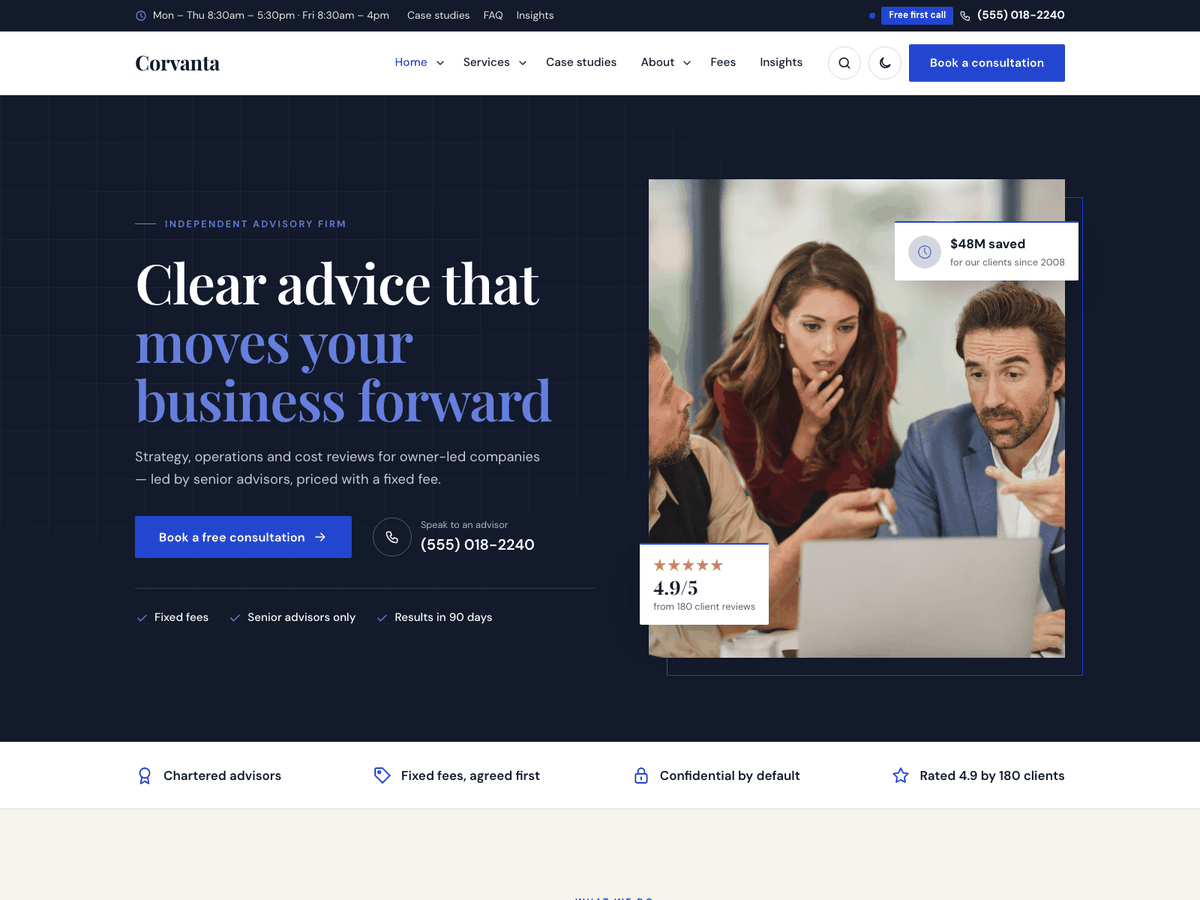
A WordPress theme for consulting firms and professional services: business consultants, financial advisors, accountants, law firms, startup advisors and HR consultancies. Six demos, consultation requests, case studies with results, consultants, services with fees, office hours and a savings calculator.
Thank you for choosing Corvanta. This guide takes you from a fresh WordPress site to a copy of the demo with your own details. If something is not covered here, write to support@codememory.com — we answer within one working day.
- Version1.0.0
- WordPress6.5 or later
- PHP7.4 or later
- Live demoOpen the demo
Highlights
- Six professional-services demos imported in one click
- Consultation request form with company, budget and meeting type, saved in your dashboard
- Case studies with measurable results and client quotes
- Consultants with job title, qualifications, sectors and office
- Services with fee, typical length and what is included
- Practice areas and industries to group services, advisors and case studies
- Office hours with an "Open now" badge
- Savings calculator with your own ranges
- 18 Elementor widgets (free Elementor)
- Every section also works as a shortcode
- Call / book bar on phones
- Light and dark mode
- Colours and fonts from the Customizer
- Block patterns and every core block styled
- Self-hosted fonts, nothing loaded from Google
- Translation ready, right-to-left support
- Child theme included
What is in the download
themeforest-corvanta-wordpress-theme/
├── corvanta.zip               ← the theme: upload this in WordPress
├── corvanta-child.zip         ← child theme, for your own code changes (optional)
├── plugins/corvanta-core.zip  ← the theme's plugin (also installed from inside the theme)
├── demo-content/              ← demo files for a manual import
├── documentation/             ← this guide, as HTML and PDF
└── licensing/                 ← GPL licence, font licences and credits
corvanta.zip, not the whole download. Uploading the download zip gives the error
"The package could not be installed. The theme is missing the style.css stylesheet."Requirements
- WordPress 6.5 or later (tested up to 7.1).
- PHP 7.4 or later (8.2 or later recommended).
- For the demo import: PHP
memory_limit256M,max_execution_time300, upload size 32M. Most hosts already allow this; if an import stops half-way, ask your host to raise these values.
Every plugin the theme uses is free from wordpress.org. Nothing needs a paid licence.
Installing the theme
- In your dashboard, go to Appearance → Themes → Add New Theme → Upload Theme.
- Choose
corvanta.zipand click Install Now, then Activate. - Optional: install and activate
corvanta-child.zipthe same way (see Child theme).
Upload by FTP instead: unzip corvanta.zip and copy the corvanta folder to
wp-content/themes/, then activate it under Appearance → Themes.
Plugins
After activation, a notice at the top of the dashboard lists the plugins the theme uses. Click Begin installing plugins (or go to Appearance → Install Plugins), select them all, choose Install, then activate them.
| Plugin | What it adds | |
|---|---|---|
| Corvanta Core | Required | Services, consultants, case studies, practice areas, industries, reviews, consultation form, office hours, savings calculator, widgets, shortcodes and the demo import. Included with the theme. |
| Elementor | Recommended | The free page builder used for the demo pages. The theme's own widgets appear in Elementor's Corvanta group. |
| One Click Demo Import | Recommended | Imports a demo in one click. You can remove it after the import. |
The theme works without any plugin: posts, pages, menus, widgets and search are styled the same. The plugin is needed for the firm features (services, consultants, case studies, consultation form…).
Importing a demo
The import gives you the demo site: pages, services, consultants, case studies, reviews, posts, menus, widgets and the Customizer settings. Use it on a new site: it adds content next to what you already have.
- Install the plugins above.
- Go to Appearance → Import Demo Data.
- Pick a demo and click Import. It takes one to three minutes; keep the page open.
- Done: visit your site. The home page, menus and blog page are already set.
| Demo | Home page | Accent |
|---|---|---|
| Business consulting | /home-consulting/ | #2346d1 |
| Financial advisors | /home-finance/ | #0f6b4f |
| Accounting & tax | /home-accounting/ | #5b3fb5 |
| Law firm | /home-legal/ | #8c2a37 |
| Startup advisors | /home-startup/ | #c2410c |
| HR & people | /home-hr/ | #a3367a |
All six home pages are imported with every demo; the demo you pick decides which one is the front page and which colours and header the Customizer uses. To switch later, go to Settings → Reading and choose another home page.
Manual import
If the one-click import is blocked by your host, use the files in demo-content/:
- Tools → Import → WordPress (install the importer when asked) → upload
content.xml. - Install Widget Importer & Exporter → Tools → Widget Importer & Exporter → upload
widgets.wie. - Install Customizer Export/Import → Appearance → Customize → Export/Import → upload
customizer-<demo>.dat. - Appearance → Menus → Manage Locations: set the main, top bar and footer menus. Settings → Reading: choose the home and blog pages.
After the import: your details
The demo uses a made-up phone number, address, office hours and calculator savings. Replace them with yours, in this order:
- Phone number and top bar: Appearance → Customize → Corvanta options → Header and top bar. Set Phone number, Top bar text (a short line such as your office hours) and the Label next to the phone. Every "Call" button on the site uses this number.
- Logo and site icon: Appearance → Customize → Site Identity.
- Colours: Appearance → Customize → Colors. The six demo home pages each have their own accent colour (see Page options); clear it there to use the Customizer colour.
- Office hours, calculator savings and consultation emails: Settings → Corvanta Core (see Office hours, Savings calculator and Consultation requests).
- Footer widgets: Appearance → Widgets → Footer column 1–4: edit the Contact details widget (address, phone, email).
- Your content: edit the services, consultants, case studies and reviews in the dashboard menus of the same names, and replace the grey placeholder photos with your own.
Services, consultants, case studies and reviews
The Corvanta Core plugin adds four content types, a Practice areas list and an Industries list to the dashboard. Each content type has a Details box under the editor.
| Menu | Used for | Details |
|---|---|---|
Services/services/ | One page per service (growth strategy, bookkeeping, employment law…). Shown by the Services widget and on the services archive. | Icon, fee ("From $2,400"), fee note, typical length, what is included (one item per line). |
Consultants/consultants/ | Partners, advisors and specialists. | Job title, years of experience, qualifications, sectors, office and an optional email. The featured image is the portrait (a tall photo works best). |
Case studies/case-studies/ | Client projects with measurable results. Shown by the Case studies widget. | Client, project length, results (one per line as value|label, for example 18%|lower costs; the first one is shown on the card), an optional client quote and who said it. |
| Reviews | Client reviews shown by the Reviews widget (no page of their own). | Rating, company, service they had, where the review was left (Google, LinkedIn…). The title is the client's name; the text is the review. |
Practice areas (under Services) group services and consultants, for example Accounting & tax or
HR & people. Each practice area has its own page at /practice/<name>/, a service page shows the
advisors of its practice area, and the Services and Consultants widgets can show one practice area only.
Industries (under Case studies) group case studies, with a page at /industry/<name>/;
the Case studies widget can show one industry only.
The featured image of a service, case study or post is used on its card and at the top of its page. Use landscape photos at least 1600 × 760 px.
Consultation requests
The Consultation form widget (or the [corvanta_consultation] shortcode) asks for the
visitor's name, phone and email, the service they are interested in, their company, team size and budget, a preferred
date and time, how they would like to meet (video call, phone or at your office) and an optional message. Name and a
phone number or email are required. Spam protection is built in (a hidden field and a limit on repeated sends) and
no other plugin is needed.
- Every request is saved under Consultation requests in the dashboard, with a counter of new ones. Open a request to see the details and set its status: New, Contacted, Meeting booked, Cancelled.
- The services in the form come from your Services, so they stay up to date.
- Settings → Corvanta Core → Consultation requests: turn email alerts on or off, choose the address (empty = the site admin email), and edit the thank-you message and the privacy note under the form.
- Emails are sent by WordPress. If they do not arrive, install an SMTP plugin such as WP Mail SMTP; requests are saved in the dashboard either way.
The form is a request, not a calendar: your team confirms each meeting by phone or email. Check the privacy rules that apply to your business before you go live.
Prefer an online scheduling service or a form plugin? Put its shortcode in a Text Editor widget instead. Everything else keeps working.
Office hours
Settings → Corvanta Core → Office hours: set an opening and a closing time for each day. Leave both empty on days you are closed, and add an optional note (for example "Closed on public holidays").
- The Office hours widget (Elementor) or
[corvanta_hours]shortcode shows the hours beside your address and phone number. The Corvanta: Office hours widget shows them in the sidebar or footer. - Today's row is highlighted, and a badge says Open now (with the closing time) or Closed now. The badge uses the time zone in Settings → General, and it is worked out in the visitor's browser, so it stays right even when your pages are cached.
- The week starts on the day set in Settings → General → Week Starts On; times use the time format set there.
Savings calculator
Settings → Corvanta Core → Savings calculator: list the areas you review, one per line as
Area|low %|high %, for example Procurement|6|12. Set the currency symbol and the note shown
under the result.
The Savings calculator widget (or [corvanta_calculator]) lets a visitor pick an area and
type what they spend on it a year. It shows the saving range ("You could save $15,000 – $30,000 a year"), worked out in
the browser: nothing is sent or stored. Turn on List the areas in the widget to show every area and its range
beside the calculator. Use percentages your own past work supports, and keep the note that the figure is an estimate.
Page options
Each page has a Page options box in the editor sidebar:
- Accent colour for this page: overrides the Customizer accent on this page only. The demo uses it to give each demo home page its own colour.
- Colour scheme: light or dark for this page only (the Law firm demo is dark).
- Header layout: classic, centered or contact, for this page only.
Leave them empty to follow the Customizer.
Page templates
| Template | Use |
|---|---|
| Default | Page title band, content and no sidebar. |
| Full width, no title | For pages built with Elementor: the content fills the screen and you add your own hero. All demo pages use it. |
| Full width with title band | The title band, then full-width content. |
Customizer settings
Appearance → Customize. Colours are in the Colors section; everything else is in the Corvanta options panel. Changes show in the preview before you publish them.
| Setting | Type | Default |
|---|---|---|
| Colors | ||
| Accent colour (buttons, links, icons) | color | #2346d1 |
| Ink colour (text, header, footer) | color | #121a2b |
| Paper colour (page background) | color | #f6f3ec |
| Style and fonts | ||
| Colour scheme | select | Light |
| Show a light/dark switch in the header | checkbox | On |
| Heading font | select | Playfair Display |
| Body font | select | DM Sans |
| Body text size (px) | number | 17 |
| Corner rounding (px) | number | 2 |
| Header and top bar | ||
| Header layout | select | Classic: logo left, menu right |
| Keep the header visible while scrolling | checkbox | On |
| Show the search button | checkbox | On |
| Header button text | text | empty |
| Header button link | url | empty |
| Show the top bar | checkbox | On |
| Top bar text (for example your office hours) | text | empty |
| Phone number | text | empty |
| Label next to the phone (for example "Free first call") | text | empty |
| Footer | ||
| Widget columns | select | 4 |
| Footer text (links allowed). Leave empty for the site name and year. | textarea | empty |
| Show a back-to-top button | checkbox | On |
| Blog | ||
| Post list layout | select | Grid of cards |
| Sidebar | select | Right |
| Show the author on posts | checkbox | On |
| Show the date on posts | checkbox | On |
| Show related posts under each post | checkbox | On |
| Mobile call bar | ||
| Show a call / book bar at the bottom of phone screens | checkbox | On |
| Second button text (the first button calls your phone number) | text | empty |
| Second button link | url | empty |
The site title, tagline, logo, site icon, background and homepage settings are WordPress's own, in Site Identity, Background image and Homepage Settings.
Widgets
Appearance → Widgets. Areas: Blog sidebar and Footer column 1 to Footer column 4 (set the number of footer columns in the Customizer). The plugin adds three widgets, named Corvanta: … in the widget list:
- Contact details — phone, email, address, each with a link.
- Office hours — your hours from Settings → Corvanta Core, with an "Open now" badge.
- Services list — links to your services, optionally from one practice area.
Building pages with Elementor
All demo pages are built with the free Elementor plugin and the theme's widgets.
- Create a page, set its Template to Full width, no title, and click Edit with Elementor.
- Search for the widget or open the Corvanta group in the left panel and drag a widget onto the page.
- Edit its text and options in the left panel. Every widget has a Background option (light, paper, dark or accent colour) so sections alternate like the demo.
The widgets fill themselves from your content: Services, Consultants, Case studies, Reviews
and Latest posts show the items you add in the dashboard. List fields (prices, steps,
questions…) take one item per line, with the parts separated by |, as the help text under each field shows.
Elementor's own Google Fonts loading is switched off by the demo import, so the site keeps using the theme's self-hosted fonts.
Without Elementor: shortcodes
Every widget is also a shortcode, so you can build the same sections in the block editor: add a Shortcode block and type, for example:
[corvanta_services count="6" columns="3"]
[corvanta_stats items="340+|Clients advised||4.9|Average rating"]
[corvanta_consultation title="Book a free consultation"]
Options are the same as in Elementor. In list options, separate items with || and parts with
|. Images take an attachment ID (Media → Library → the number in the address) or a full URL.
Hero — [corvanta_hero]
| Option | What it does |
|---|---|
layout | Layout Choices: split, cover |
primary_label | Button text |
primary_url | Button link |
show_phone | Show the phone number (from the Customizer) |
secondary_label | Second button text (when the phone is hidden) |
secondary_url | Second button link |
badges | Trust points, one per line |
image | Photo |
rating | Rating (for example 4.9/5) |
rating_text | Rating note (for example "from 180 client reviews") |
card_title | Floating card title |
card_text | Floating card text |
Also: eyebrow, title, text.
Services — [corvanta_services]
| Option | What it does |
|---|---|
count | How many |
practice | Only this practice area (slug, optional) |
style | Style Choices: cards, icons |
show_price | Show prices |
more_label | Button under the grid |
more_url | Button link |
Also: eyebrow, title, text, columns, tone.
Reviews — [corvanta_reviews]
| Option | What it does |
|---|---|
summary | Summary line (for example "4.9 average from 180 reviews") |
count | How many |
Also: eyebrow, title, text, columns, tone.
Consultants — [corvanta_consultants]
| Option | What it does |
|---|---|
count | How many |
practice | Only this practice area (slug, optional) |
Also: eyebrow, title, text, columns, tone.
Numbers — [corvanta_stats]
| Option | What it does |
|---|---|
items | Numbers as Value|Label, one per line |
Also: tone.
Why choose us — [corvanta_features]
| Option | What it does |
|---|---|
items | Features as icon|Title|Text, one per line. Icons: briefcase, chart, growth, pie, coins, calculator, handshake, target, scale, lightbulb, building, globe, document, compass, layers, rocket, lock, refresh, shield, clock, tag, star, badge, check, users, phone, calendar, sparkle, leaf, heart. |
image | Photo (optional) |
Also: eyebrow, title, text, columns, tone.
How it works — [corvanta_steps]
| Option | What it does |
|---|---|
items | Steps as Title|Text, one per line |
Also: eyebrow, title, text, tone.
Prices — [corvanta_pricing]
| Option | What it does |
|---|---|
items | One price per line: Name|Price|Note|Feature; Feature; Feature|yes (to highlight)|Button text|Button link |
note | Small print under the prices |
Also: eyebrow, title, text, tone.
Questions — [corvanta_faq]
| Option | What it does |
|---|---|
items | Questions as Question|Answer, one per line |
Also: eyebrow, title, text, tone.
Call to action — [corvanta_cta]
| Option | What it does |
|---|---|
button_label | Button text |
button_url | Button link |
show_phone | Show the phone number |
Also: title, text, tone.
Trust strip — [corvanta_trust]
| Option | What it does |
|---|---|
items | Badges as icon|Text, one per line |
Also: tone.
Savings calculator — [corvanta_calculator]
| Option | What it does |
|---|---|
button | Button text |
show_list | List the areas and savings (from Settings → Corvanta Core) |
Also: eyebrow, title, text, tone.
Case studies — [corvanta_cases]
| Option | What it does |
|---|---|
count | How many |
industry | Only this industry (slug, optional) |
more_label | Button under the grid |
more_url | Button link |
Also: eyebrow, title, text, columns, tone.
Latest posts — [corvanta_posts]
| Option | What it does |
|---|---|
count | How many |
category | Only this category (slug, optional) |
Also: eyebrow, title, text, tone.
Call-back banner — [corvanta_emergency]
| Option | What it does |
|---|---|
phone | Phone (empty = the Customizer phone) |
Also: title, text, tone.
Text and photo — [corvanta_about]
| Option | What it does |
|---|---|
image | Photo |
badge_value | Badge number (for example 18) |
badge_label | Badge text |
points | Points, one per line |
button_label | Button text |
button_url | Button link |
reverse | Photo on the right |
Also: eyebrow, title, text, tone.
Consultation form — [corvanta_consultation]
| Option | What it does |
|---|---|
layout | Layout Choices: split, stacked |
points | Points beside the form, one per line |
button | Button text |
show_phone | Show the phone number |
Also: eyebrow, title, text, tone.
Office hours — [corvanta_hours]
| Option | What it does |
|---|---|
address | Address |
map_url | Directions link (for example a map link) |
show_phone | Show the phone number |
Also: eyebrow, title, text, tone.
Shortcodes: [corvanta_hero], [corvanta_services], [corvanta_reviews], [corvanta_consultants], [corvanta_stats], [corvanta_features], [corvanta_steps], [corvanta_pricing], [corvanta_faq], [corvanta_cta], [corvanta_trust], [corvanta_calculator], [corvanta_cases], [corvanta_posts], [corvanta_emergency], [corvanta_about], [corvanta_consultation], [corvanta_hours].
Block editor and patterns
Posts and simple pages use the WordPress block editor. Every core block is styled to match the theme, and the editor shows the theme's fonts and colours. Click + → Patterns → Corvanta for ready-made sections: hero with call button, three services, call to action, questions and answers, three reviews, price table and contact details. The theme also adds block styles: Card (Group), Check marks (List), Eyebrow (Paragraph) and Framed (Image).
Blog
Settings → Reading → Posts page sets the page that lists your posts (the demo uses "Blog"). Choose a grid or list layout and the sidebar position in Customize → Corvanta options → Blog. Posts show the author, date, category, share links (turn them off in Settings → Corvanta Core) and related posts.
Light and dark mode
Customize → Corvanta options → Style and fonts → Colour scheme: Light, Dark or Follow the visitor's device. With Show a light/dark switch on, visitors can switch with the moon button in the header; their choice is remembered on that device. A single page can be forced to light or dark in its Page options.
Child theme
If you want to change the theme's code, install corvanta-child.zip and activate Corvanta Child.
Put your CSS in the child theme's style.css and your PHP in its functions.php; copy a
template file from corvanta into the child theme to override it. Theme updates replace the parent theme
only, so your changes are kept.
Small style changes do not need a child theme: use Customize → Additional CSS.
Translation and right-to-left
Every text in the theme and the plugin can be translated. The templates are
corvanta/languages/corvanta.pot and corvanta-core/languages/corvanta-core.pot.
- Easiest: install Loco Translate → Loco Translate → Themes → Corvanta → New language, and translate in your browser. Do the same under Plugins for Corvanta Core.
- Or use Poedit: open the .pot file, translate, and save the files as
corvanta-fr_FR.po/.moinwp-content/languages/themes/.
Right-to-left languages (Arabic, Hebrew, Persian…) are supported: when WordPress runs in such a language, the layout mirrors automatically.
Updating
When a new version is released, download it from your ThemeForest Downloads page. Then either:
- Appearance → Themes → Add New Theme → Upload Theme → choose the new
corvanta.zip→ Replace current with uploaded; or - replace the
wp-content/themes/corvantafolder by FTP.
When the theme comes with a newer Corvanta Core, the dashboard notice offers to update the plugin. Your content, menus, widgets and Customizer settings are kept. Changes you made to the parent theme's files are lost: keep them in the child theme.
Questions
"The package could not be installed. The theme is missing the style.css stylesheet."
You uploaded the whole download. Unzip it first and upload corvanta.zip only.
The import stopped or shows an error.
Your host stopped the import early. Ask them to raise max_execution_time to 300 and memory_limit to 256M, then run the import again: items already imported are skipped.
The pages look plain after the import.
Activate Elementor and the theme's plugin, then reload. Without Elementor, the pages show the same sections through shortcodes.
Consultation request emails do not arrive.
Requests are always saved under Consultation requests. For email, check the address in Settings → Corvanta Core and install an SMTP plugin such as WP Mail SMTP; many hosts block WordPress's default mail.
Where are the demo photos?
They are licensed for the live demo only, so the import uses placeholders. Add your own photos in Media → Library and set them as featured images.
How do I change the font?
Customize → Corvanta options → Style and fonts → heading and body font. All fonts are included in the theme; no Google Fonts requests.
How do I remove the top bar or the phone bar on mobile?
Customize → Corvanta options → Header and top bar → Show the top bar, and Mobile call bar.
Can I use the theme on more than one site?
A Regular licence covers one site (one end product). Buy one licence per site.
Support
Support is included with your purchase and covers questions about the theme's features and fixing bugs. It does not cover custom changes or problems caused by other plugins.
Email support@codememory.com with your purchase code and your site address. See the changelog for what changed in each version and third-party materials for credits.